Creating & managing forms
Comprehensive guide to creating, organizing, and managing multiple feedback forms through AllFeedback's central dashboard and template system.
Last updated on Jun 22, 2026
Creating & managing forms
Start writing your documentation here...
AllFeedback allows you to create, organize, and manage multiple feedback forms from a central location. This guide covers everything you need to know about working with forms in the plugin.
Accessing the All Forms List
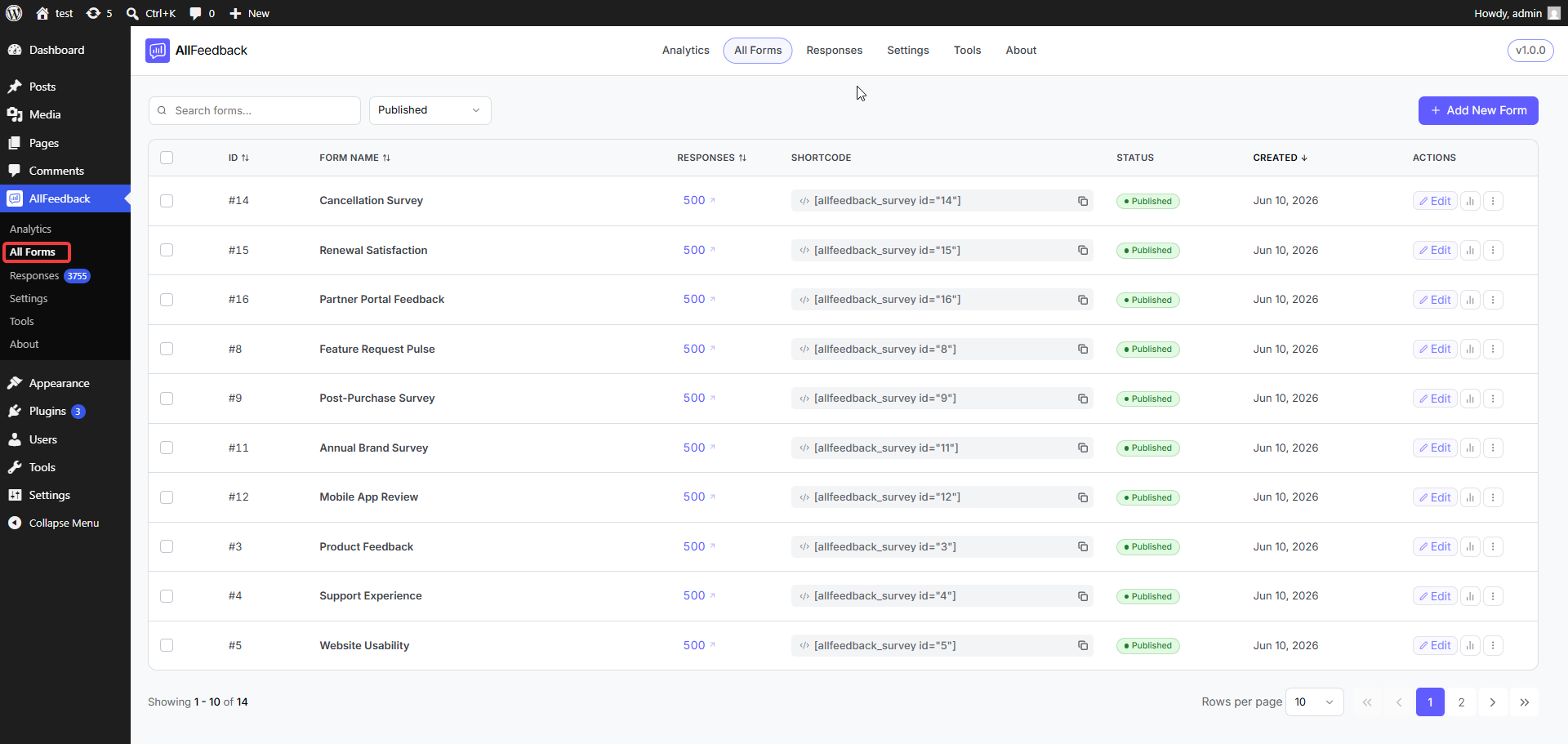
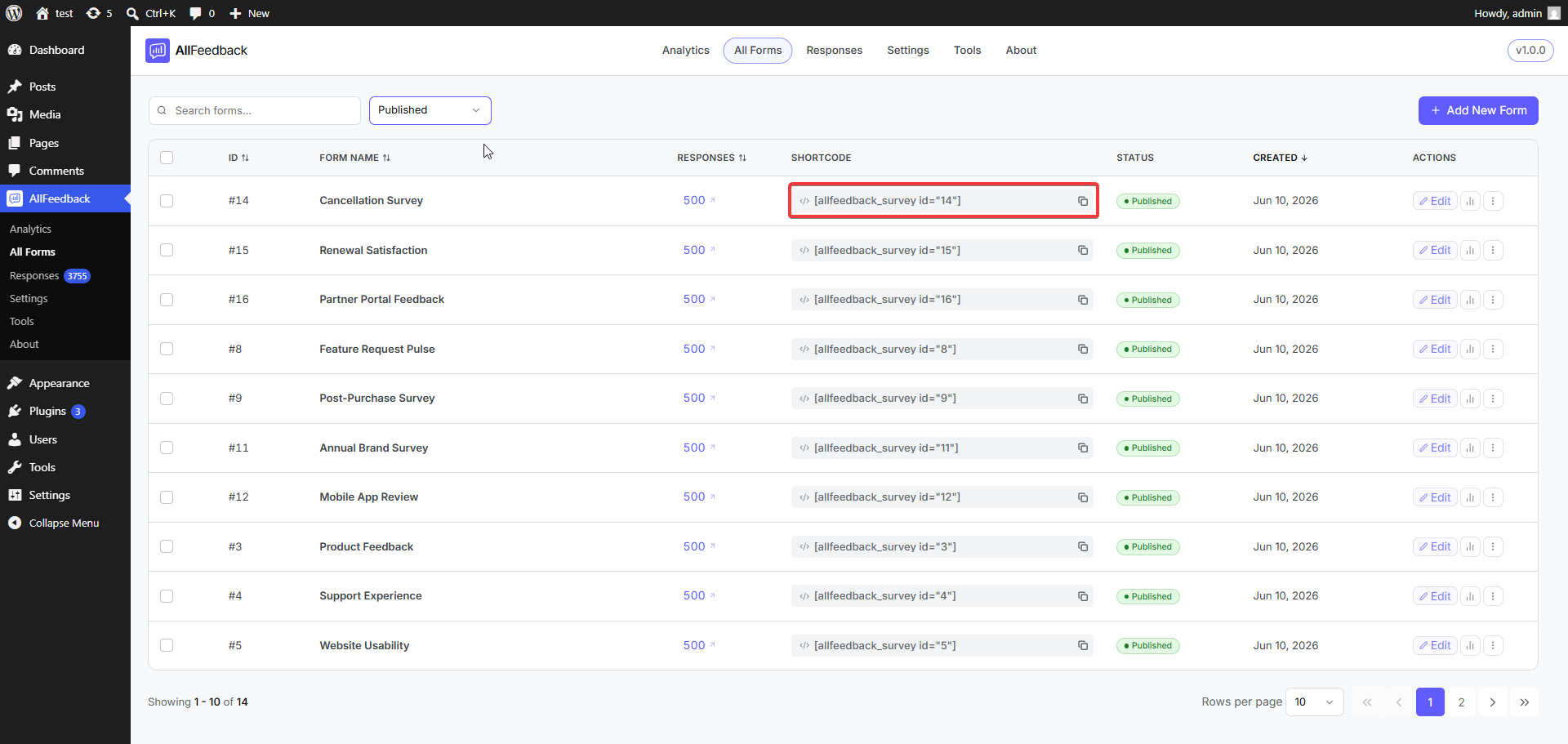
The All Forms screen is your central hub for managing all feedback forms. To access it:
Go to wp-admin → AllFeedback → All Forms
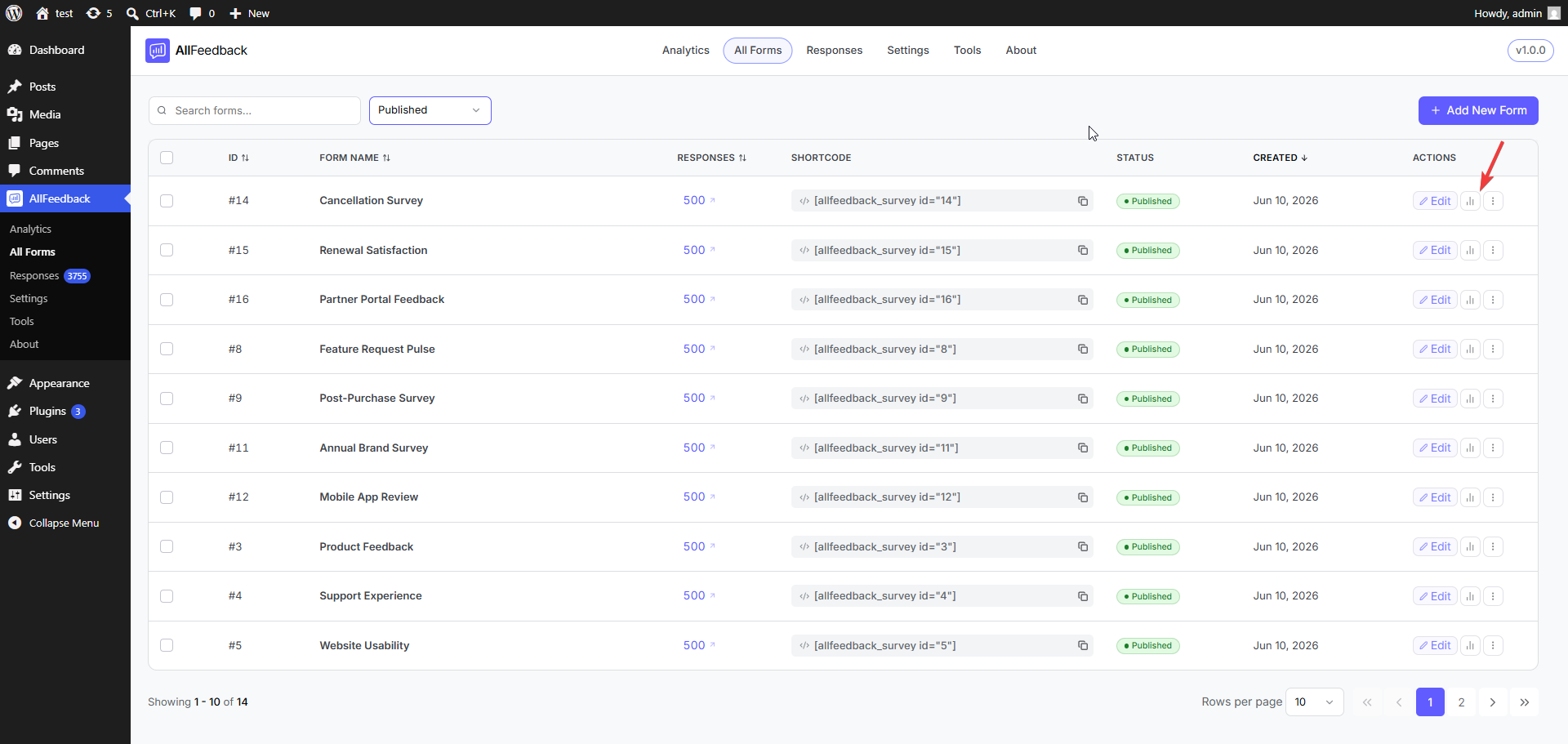
The All Forms list displays all your feedback forms in a table format, showing:
Form ID (unique identifier for each form)
Form title
Status (Published or Draft)
Number of responses collected
Creation date
Shortcode for embedding the form
You can search forms using the search box at the top, or filter by status using the All Status dropdown.
Creating a New Form
AllFeedback provides pre-built templates to help you get started quickly.
Step 1: Start the Creation Process
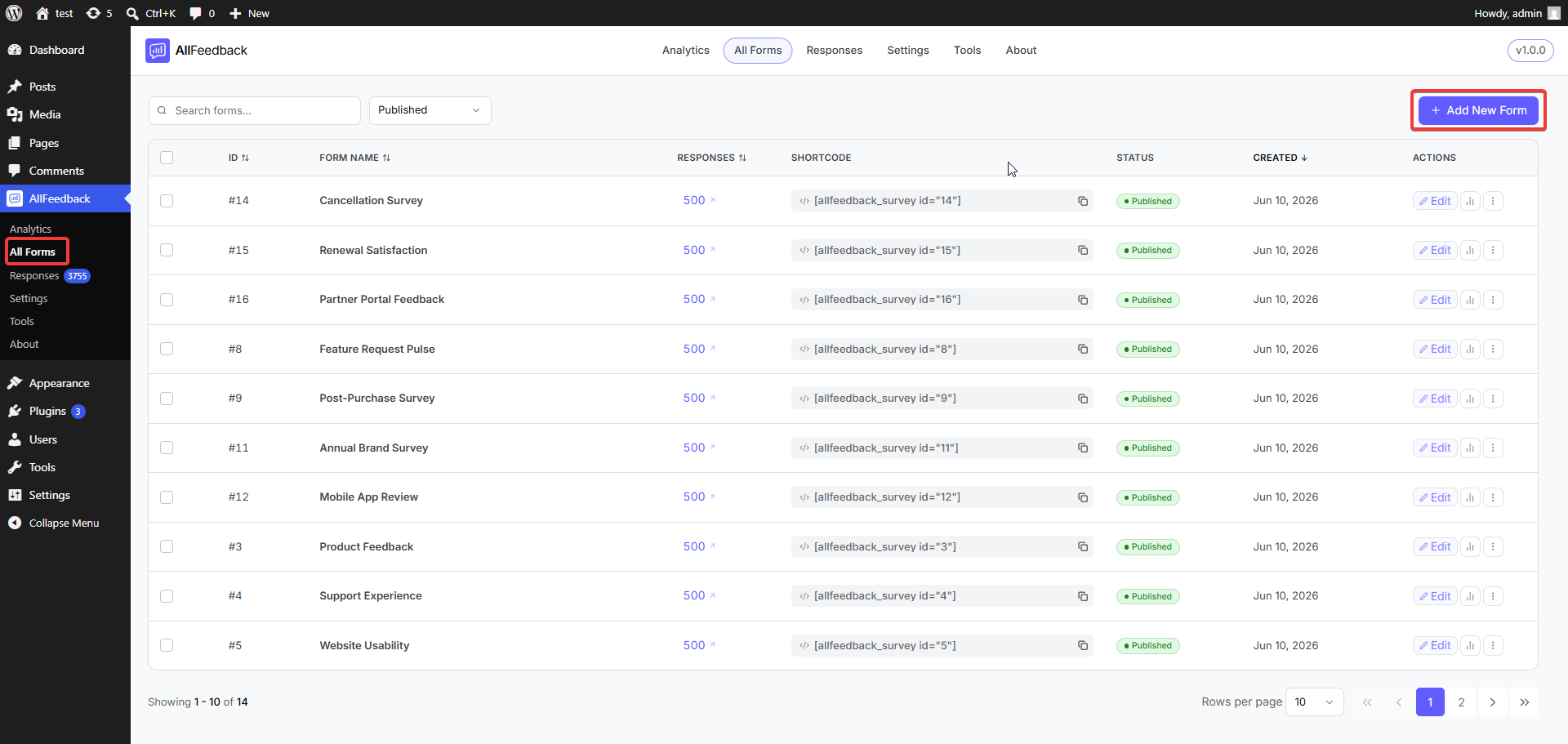
From the All Forms screen, click the Add New Form button
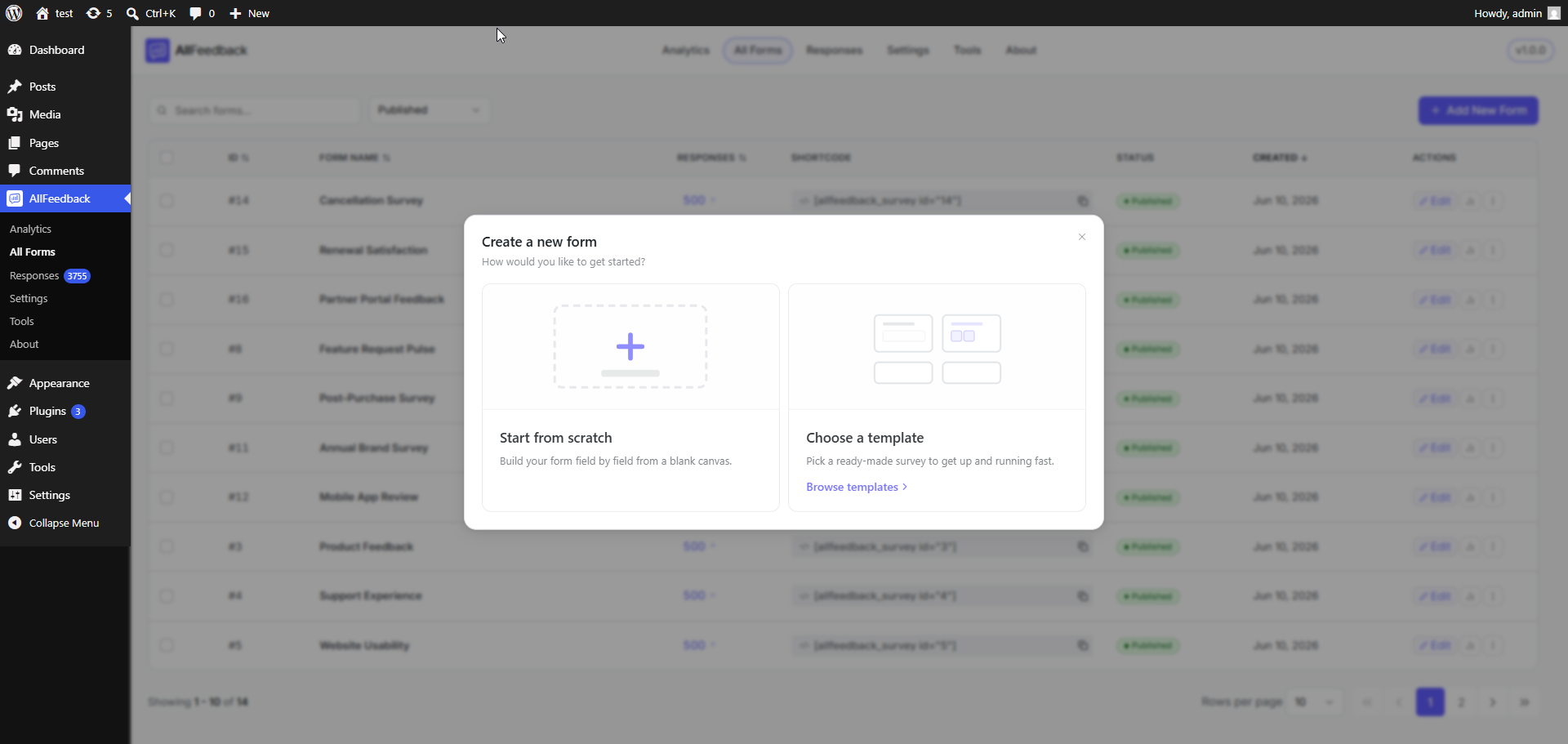
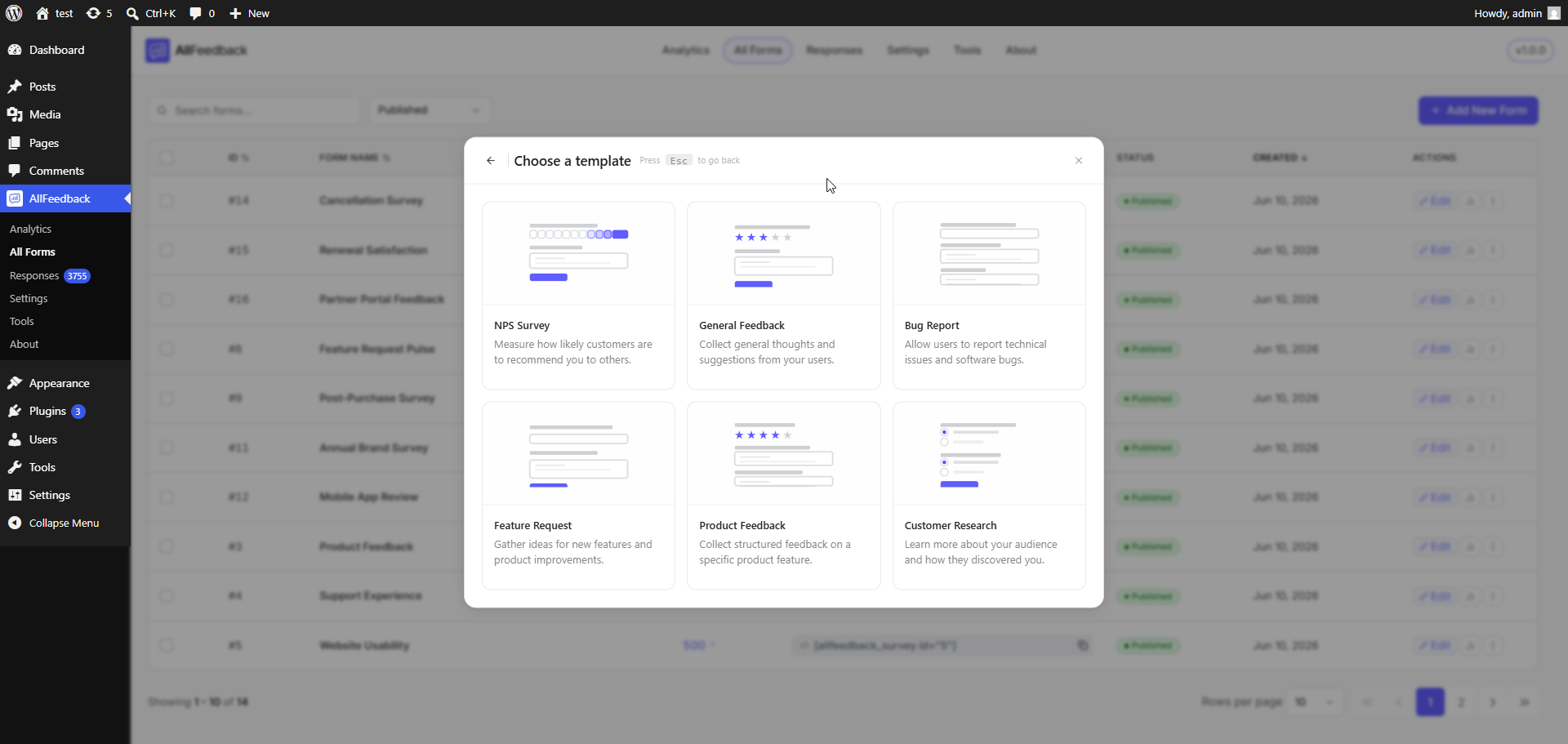
A template selection modal will appear
Step 2: Choose a Template
Select from six pre-built templates:
NPS Survey — Measure how likely customers are to recommend you to others
General Feedback — Collect general thoughts and suggestions from your users
Bug Report — Allow users to report technical issues and software bugs
Feature Request — Gather ideas for new features and product improvements
Product Feedback — Collect structured feedback on a specific product feature
Customer Research — Learn more about your audience and how they discovered you
Each template card shows a visual preview of the form structure. Click on a template to select it.
Step 3: Configure Your Form
After selecting a template, you will be taken to the form builder where you can customize the form to your needs. The form is automatically created with Draft status.
Understanding Form Status
Forms in AllFeedback can have different statuses that control their visibility and behavior:
Draft Status
Indicated by a red Draft badge in the All Forms list
Forms are never visible to site visitors
Administrators can preview and test draft forms
All new forms start as drafts
Published Status
Indicated by a green Published badge in the All Forms list
Forms are visible to site visitors based on targeting rules
Forms can collect real responses from users
Publishing a form triggers a notification email to the admin (if email notifications are enabled)
Duplicating a Form
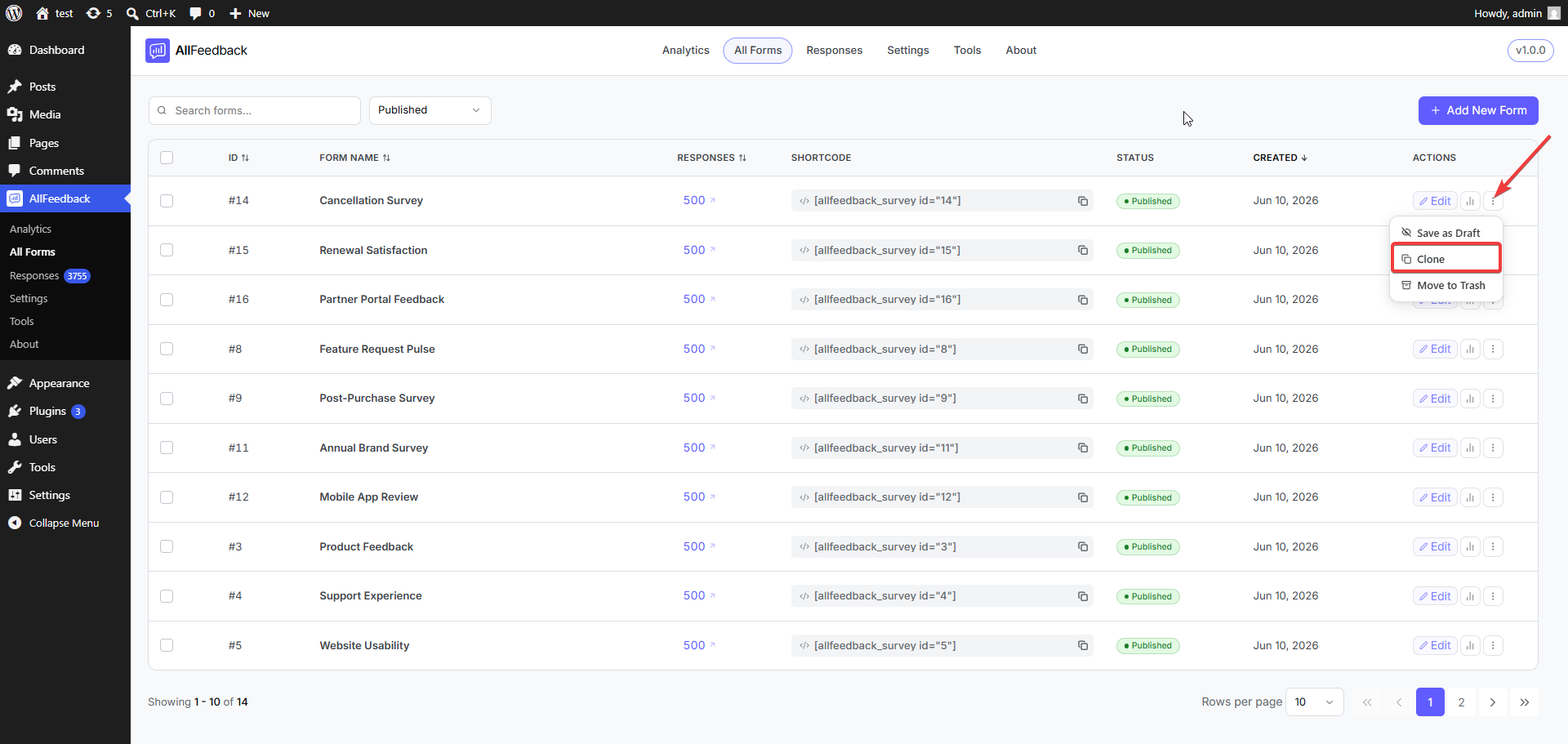
To duplicate an existing form:
In the All Forms list, locate the form you want to duplicate
Click the three-dot menu icon in the form's row
Select the duplicate option from the menu
A copy of the form will be created with all the same questions, settings, and styling. The duplicated form will have Draft status and you can edit it independently from the original.
Deleting a Form
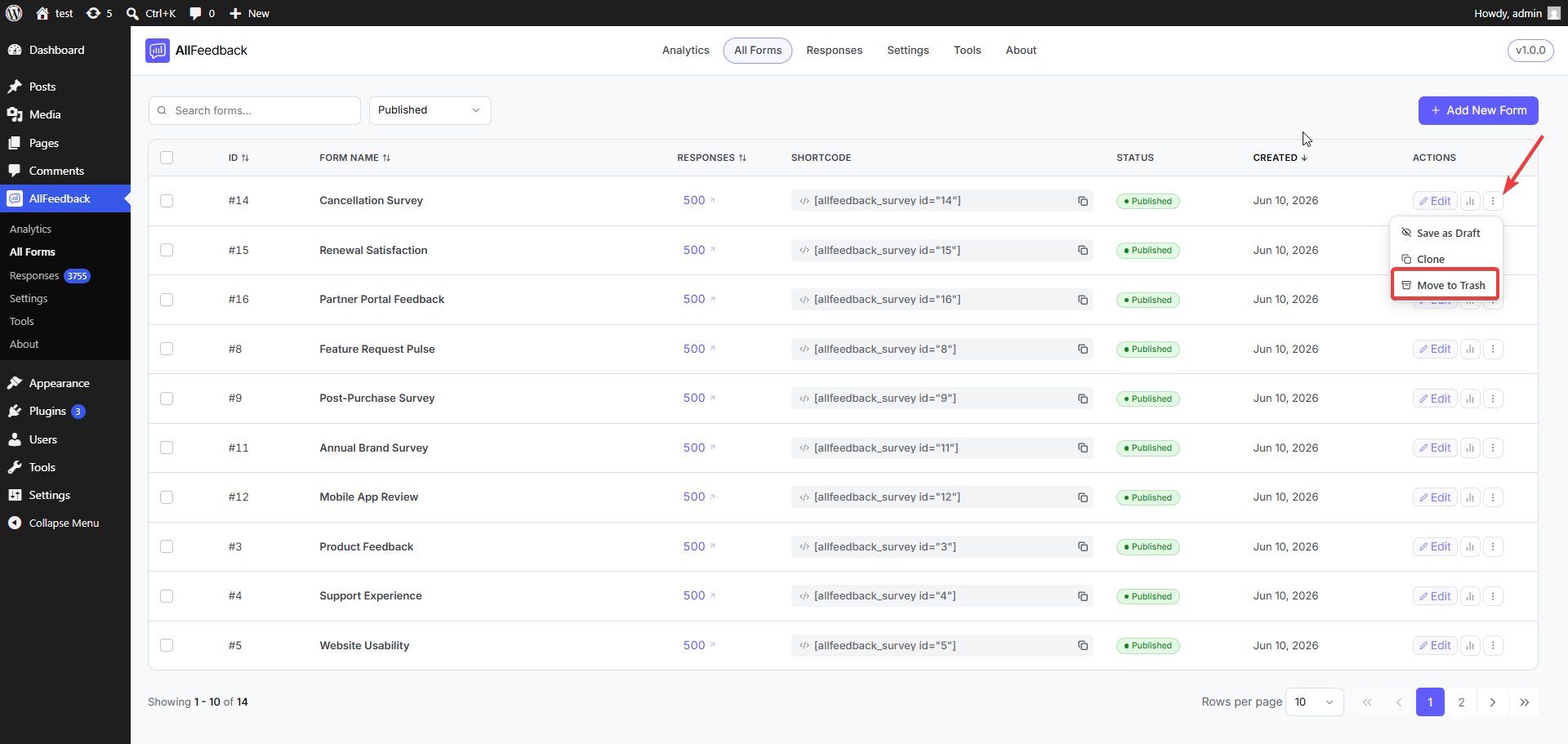
To delete a form:
In the All Forms list, locate the form you want to delete
Click the three-dot menu icon in the form's row
Select the delete option from the menu
Confirm the deletion when prompted
When you delete a form, it is moved to Trashed status. The form and all its response data are preserved but hidden from the All Forms list and no longer visible to visitors.
Restoring a Deleted Form
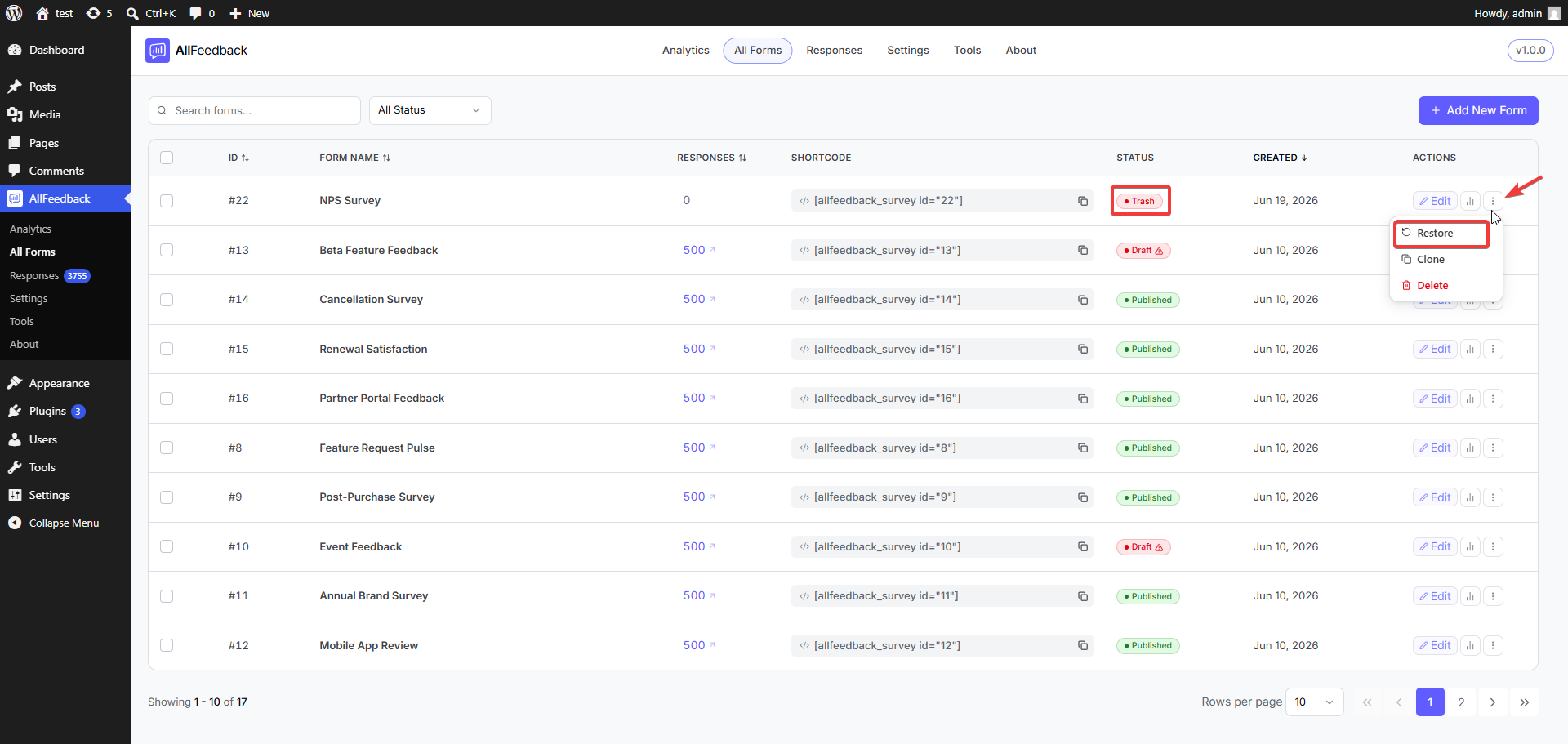
Trashed forms can be restored:
Filter the All Forms list to show trashed forms
Locate the form you want to restore
Click the restore option
The form will return to Draft status and reappear in your All Forms list.
Using Form Shortcodes
Each form has a unique shortcode that allows you to embed it anywhere on your site. The shortcode format is:
[allfb_survey id="X"]Where X is the form ID number shown in the All Forms list.
To copy a form's shortcode:
Locate the form in the All Forms list
Click the copy icon next to the shortcode
Paste the shortcode into any post, page, or widget area
Viewing Form Analytics
Each form has an analytics icon in the All Forms list. Click this icon to view detailed metrics for that specific form, including response counts, completion rates, and other performance data.