
Managing Responses
Last updated on Jun 22, 2026
Managing Responses
After visitors submit feedback through your surveys, all responses are collected in the AllFeedback responses inbox. This guide explains how to view, filter, edit, and manage the responses you receive.
Accessing the Responses Inbox
To view all responses across your surveys:
Go to wp-admin → AllFeedback → Responses
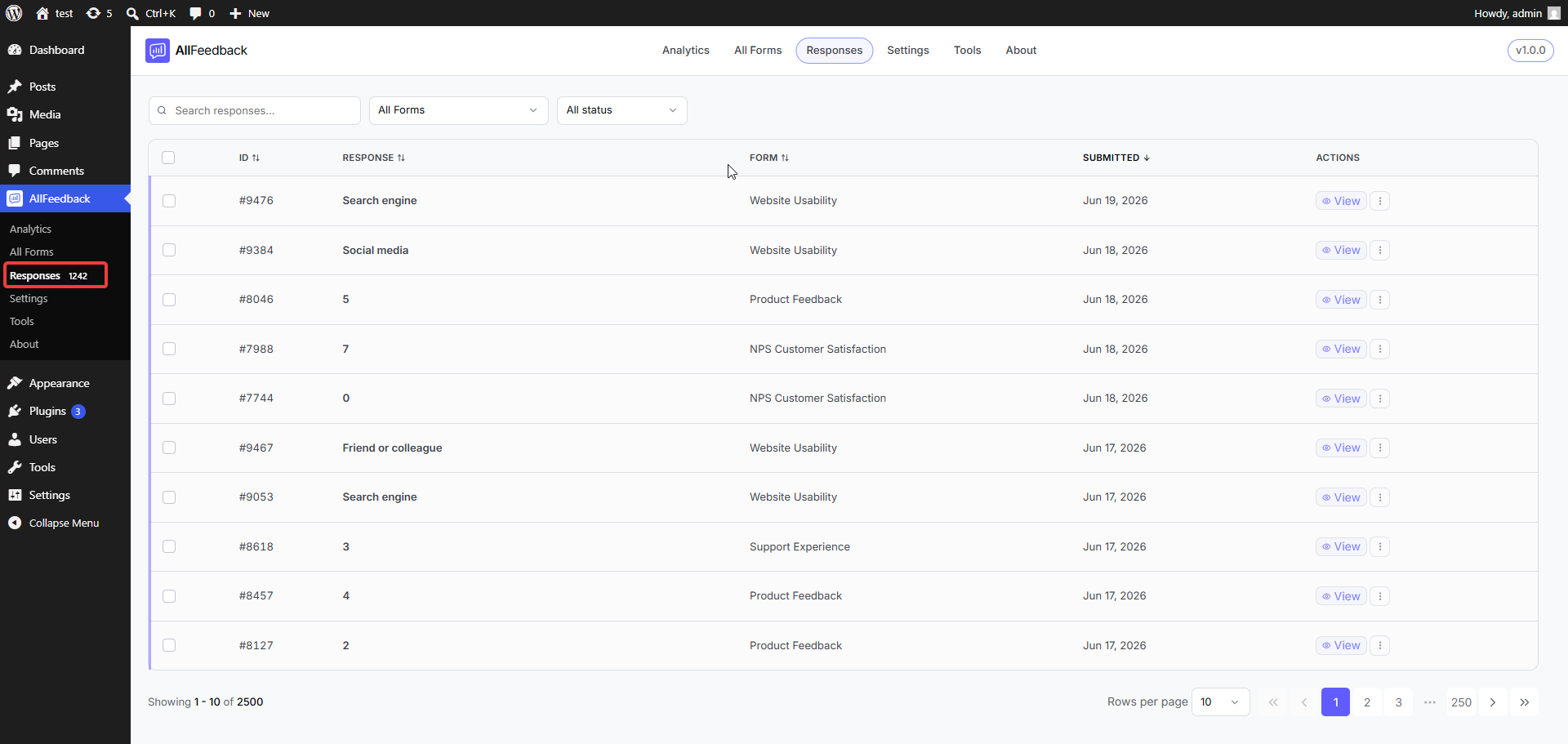
The responses inbox displays all submitted feedback in a paginated table. A badge next to Responses in the sidebar shows your current unread count — this count excludes responses from trashed surveys.
Understanding the Responses List
The responses table shows the following for each submission:
Checkbox — Select one or more responses to run bulk actions
ID — A unique numeric identifier (for example, #42)
Response — A summary of the submission: the first answer value, such as an NPS score like 9 or the first text answer
Form — Which survey the response belongs to (shown only in the All Forms view; hidden when you filter to a single form)
Submitted — The date the response was submitted
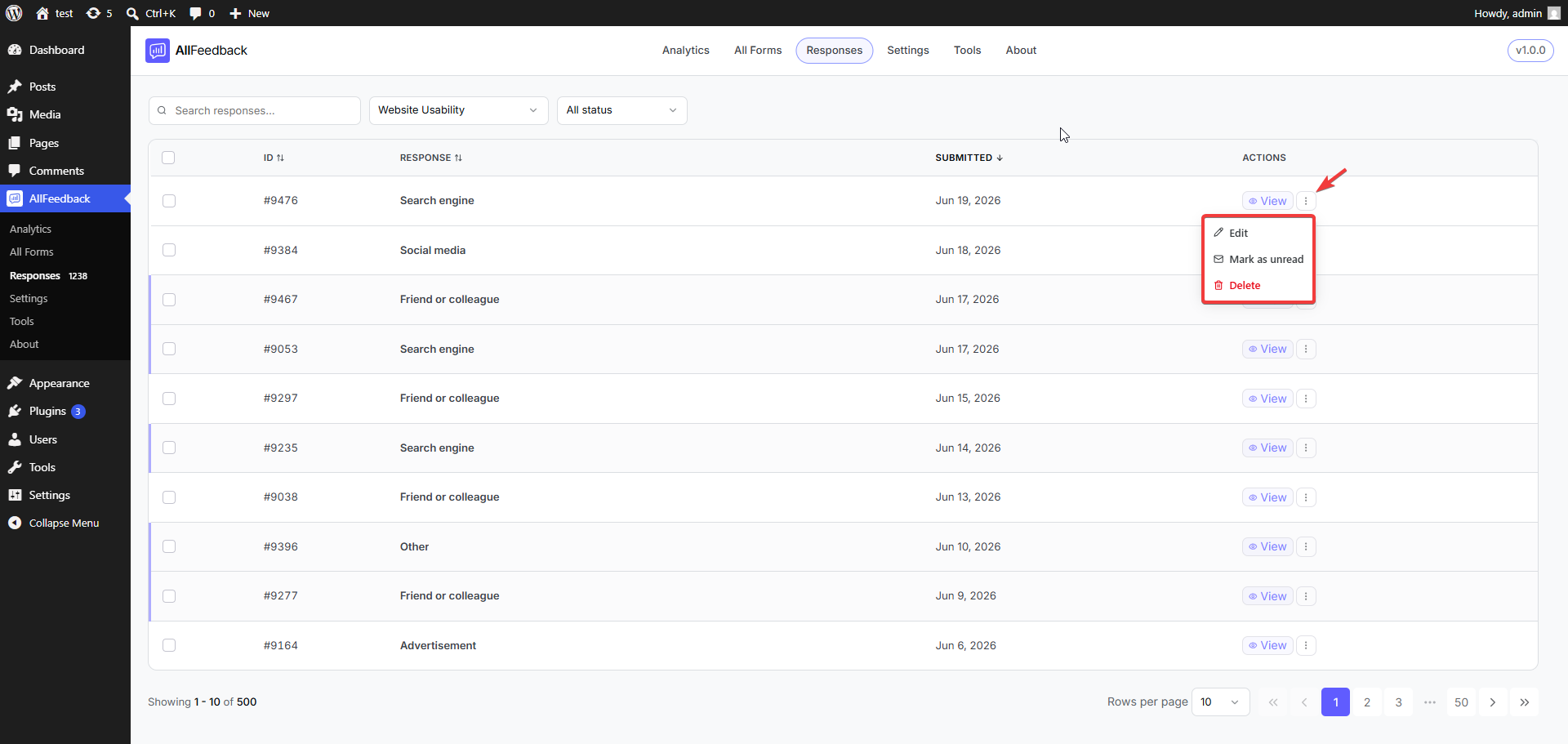
Actions — A View button and a three-dot menu (View, Edit, Mark as read/unread, Delete)
Click any column header with an arrow to sort by that field — ID, Response, Form, or Submitted. Click once to sort ascending and again to sort descending.
Read and Unread Status
New responses arrive as unread and are highlighted in the list. When you open a response to view its details, it is automatically marked as read. You can also mark responses as read or unread manually — individually from the row's three-dot menu, or in bulk by selecting several responses.
The unread badge in the sidebar updates automatically as you read or mark responses.
Filtering and Searching Responses
Use the controls at the top of the responses list to narrow down what you see:
Search responses — Enter keywords to search across response content
All Forms dropdown — Show only submissions from a specific survey
All status dropdown — Filter by Read or Unread status
Viewing a Single Response
To open the full details of a response, click the View button next to it in the list.
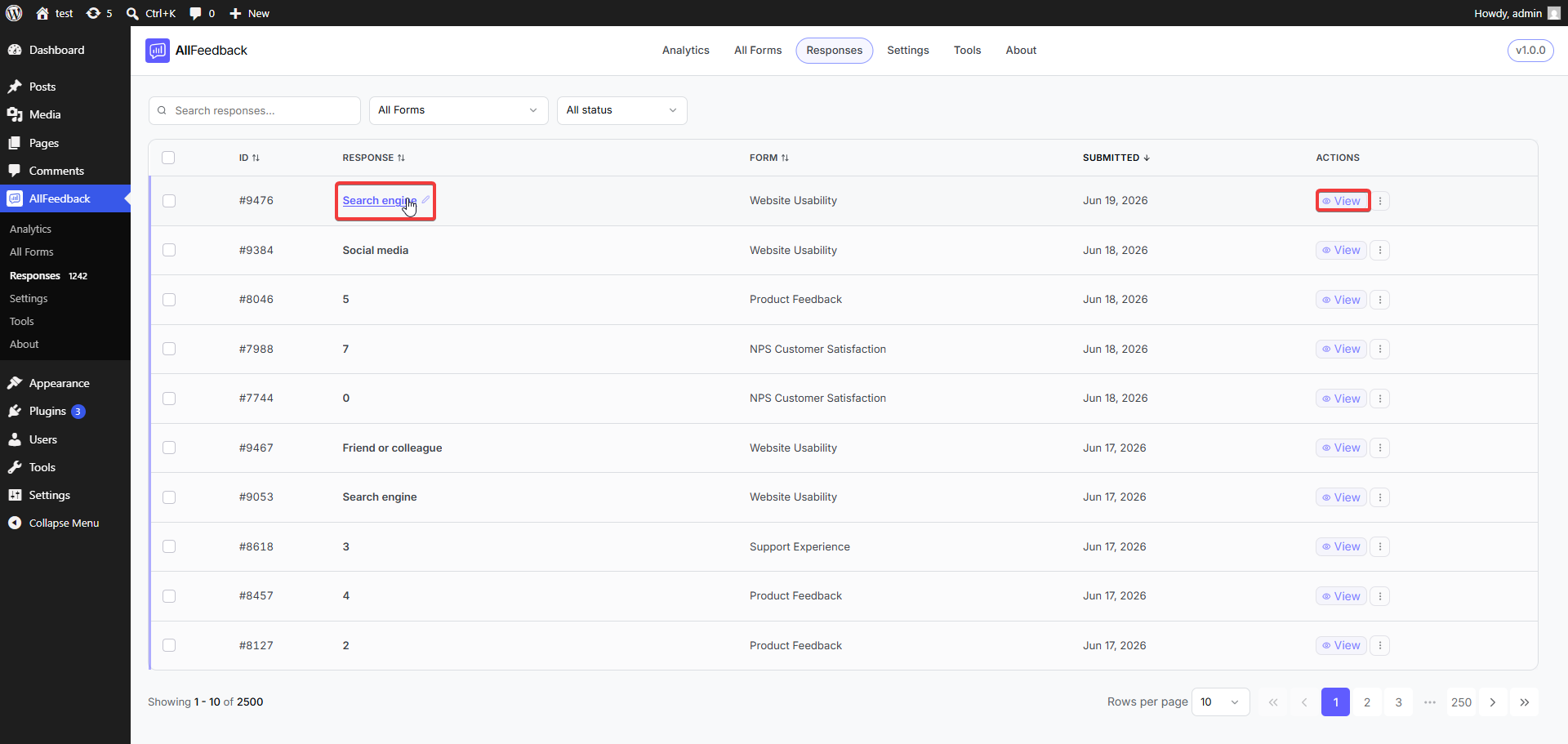
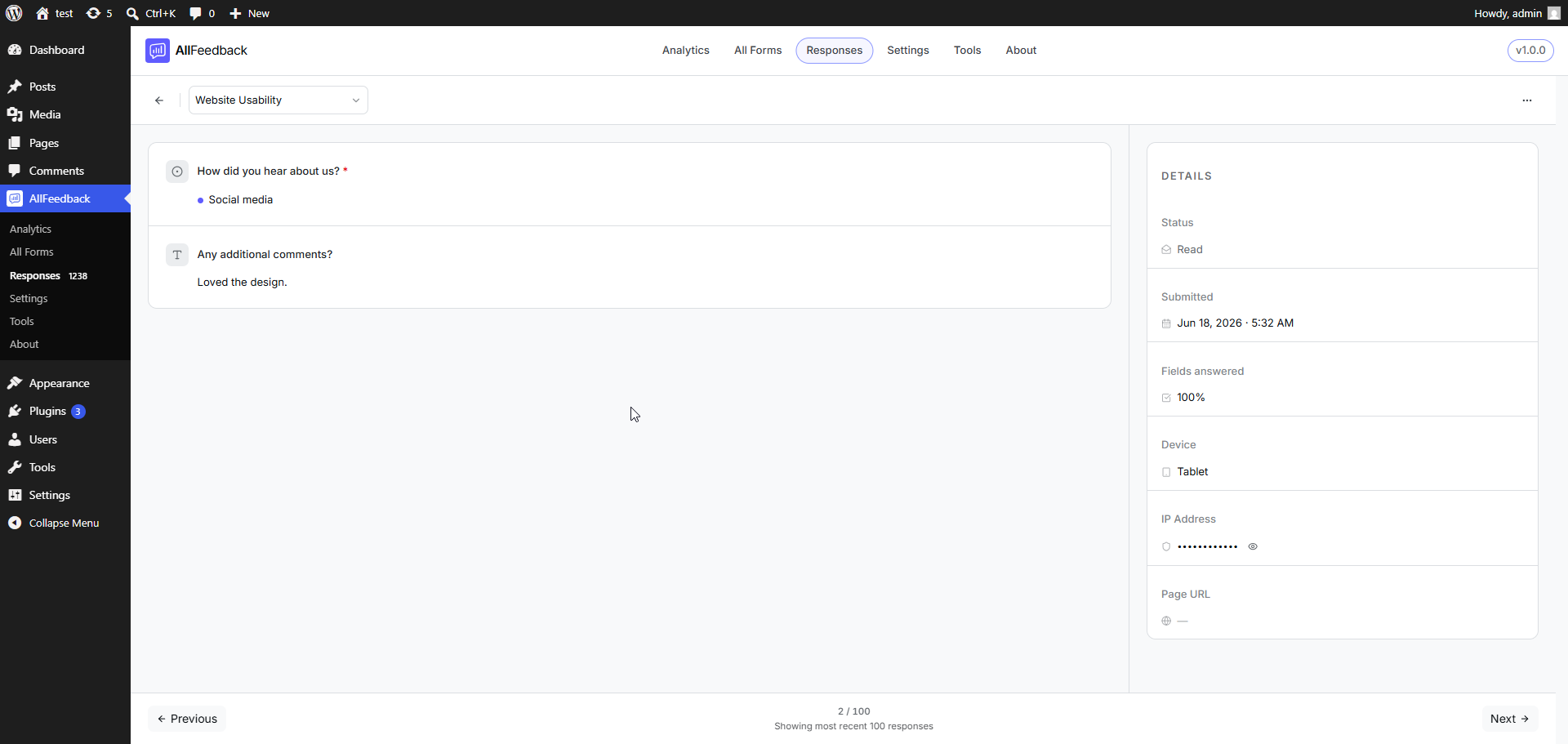
The detail view has two parts:
Answers panel — Every submitted answer, rendered for its field type:
NPS answers show the 0–10 score with a color-coded Promoter / Passive / Detractor label
Star Rating and Scale answers show a visual rating
Unanswered optional fields are tucked under a "Show unanswered optional fields" toggle
Details sidebar — Metadata about the submission:
Status — Read or Unread
Submitted — Date and time of submission
Fields answered — Completion percentage for the response
Device — Desktop, mobile, tablet, or unknown
IP Address — Shown masked, with an eye icon to reveal it (only appears if an IP was stored)
Page URL — The page where the survey was submitted
From the detail view you can also Edit the answers, mark the response read/unread, delete it, or move between responses with Previous and Next.
Respondent Metadata
AllFeedback captures certain metadata with each response to help you understand who submitted feedback and to prevent duplicate submissions. What is collected depends on your privacy settings.
Default Metadata Collection
By default, AllFeedback records:
User ID — For logged-in WordPress users, their WordPress user ID
IP address — The visitor's IP is stored and viewable (masked) in the response detail. A separate hashed version of the IP is also kept and used for duplicate prevention and rate limiting
Guest token — For logged-out visitors, a unique token stored in their browser to detect repeat submissions
User agent — The visitor's browser and device string
Device type — Categorized as desktop, mobile, tablet, or unknown
Page URL — The page the survey was submitted from
Consent — Whether the visitor agreed, recorded when the Require Consent setting is enabled
Disabling User Details
If you enable the Disable User Details setting (wp-admin → AllFeedback → Settings → Advanced → Privacy), AllFeedback stops storing the visitor's IP address and user agent on new responses. This is useful when you want to collect feedback more anonymously for privacy compliance.
This setting applies to new submissions and does not remove data that was already stored.
Managing Responses
From the responses list you can:
Mark responses as read or unread — individually from the three-dot menu, or in bulk by selecting responses
Delete responses — individually from the three-dot menu, or in bulk using the selection toolbar
Deleting a response is permanent and asks for confirmation first. When you delete a response, the survey's response count is automatically decremented by one — and the counter never drops below zero.
Response Count Tracking
Each survey keeps a response count that updates automatically:
When a visitor submits a response, the counter increases by one
When you delete a response, the counter decreases by one (never below zero)
This count appears in the All Forms list and feeds into analytics calculations.
No documents yet
No documentation has been published in this section yet.