Displaying Forms
Learn how to display AllFeedback forms using shortcodes, Gutenberg blocks, or targeted floating widgets across your WordPress site.
Last updated on Jun 22, 2026
Displaying Forms
AllFeedback gives you multiple ways to display your feedback forms to visitors. You can show them site-wide as floating widgets that appear based on targeting rules you configure, or embed them directly into specific pages using shortcodes or blocks. This guide explains each display method and when to use it.
Display Methods Overview
AllFeedback supports three primary methods for displaying forms:
Targeted widget display — Show floating widgets automatically based on page rules
Shortcode embeds — Insert a form anywhere shortcodes are supported
Gutenberg block embeds — Add forms to posts and pages using the block editor
Method 1: Targeted Widget Display
Instead of embedding forms into specific pages, you can configure forms to appear automatically as floating widgets based on targeting rules. This is the most flexible display method and does not require editing individual pages.
When to Use Targeted Widgets
You want the form to appear site-wide or on multiple pages without editing each one
You want a floating widget that does not interrupt the page layout
You want to control exactly which pages show the form using inclusion and exclusion rules
How Widget Targeting Works
When a visitor loads any page on your site, AllFeedback checks all Published forms to see if any match the current page. The first matching form the visitor is eligible to see is displayed as a floating widget. If no form matches, no widget appears.
Targeting rules are evaluated in this order:
Exclusion rules are checked first. If the current page matches any exclusion rule, that form is skipped entirely.
If the form is set to All Pages, it matches immediately.
If the form is set to Specific Pages or Posts, the current page must match at least one of the selected pages or posts.
The first form that passes all checks is displayed.
Configuring Widget Targeting
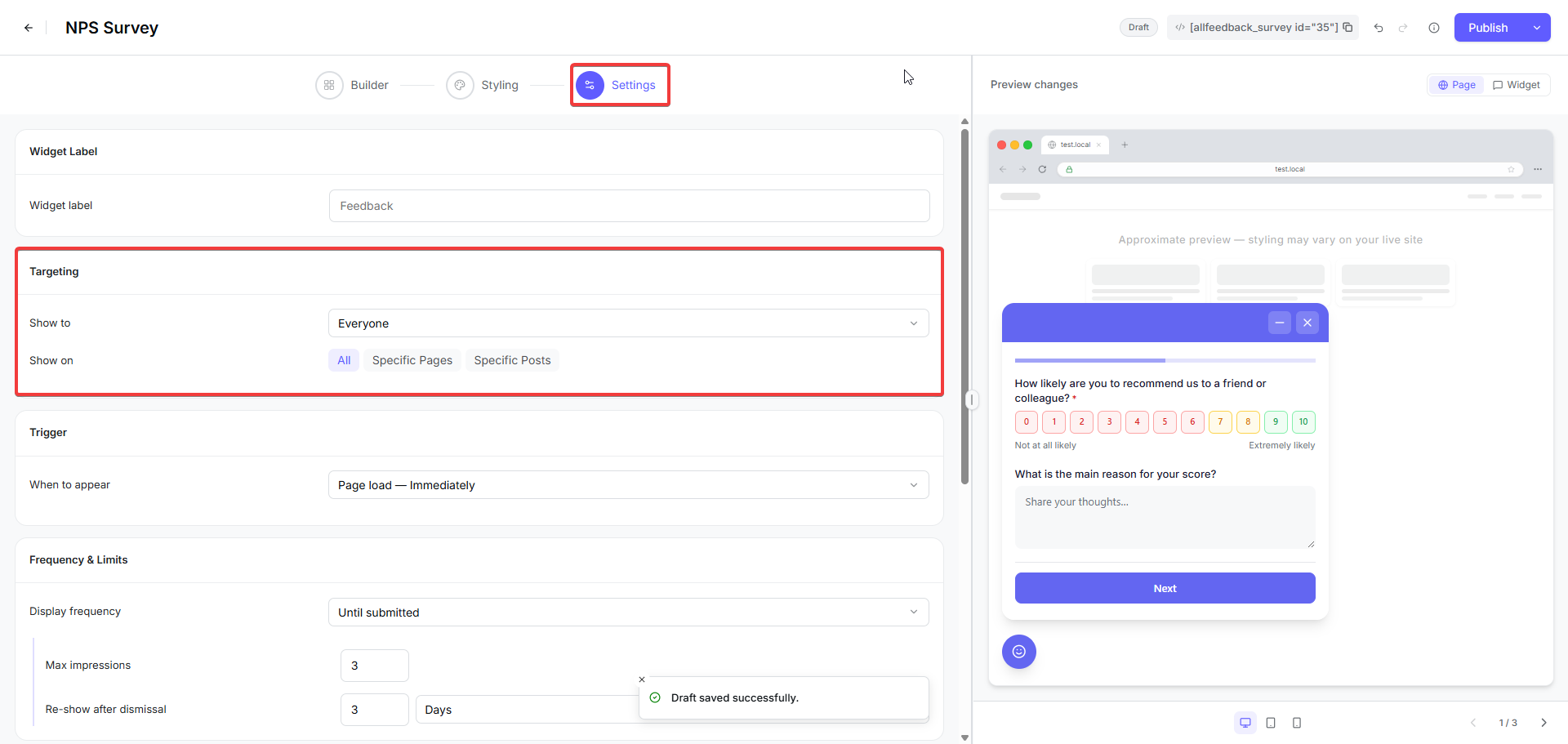
Targeting is configured inside the form builder when you create or edit a form.
Go to wp-admin → AllFeedback → All Forms
Click Edit on the form you want to configure
Open the targeting panel in the form builder
Choose one of the targeting modes:
All Pages — The widget appears on every page of your site
Specific Pages or Posts — The widget appears only on pages or posts you select
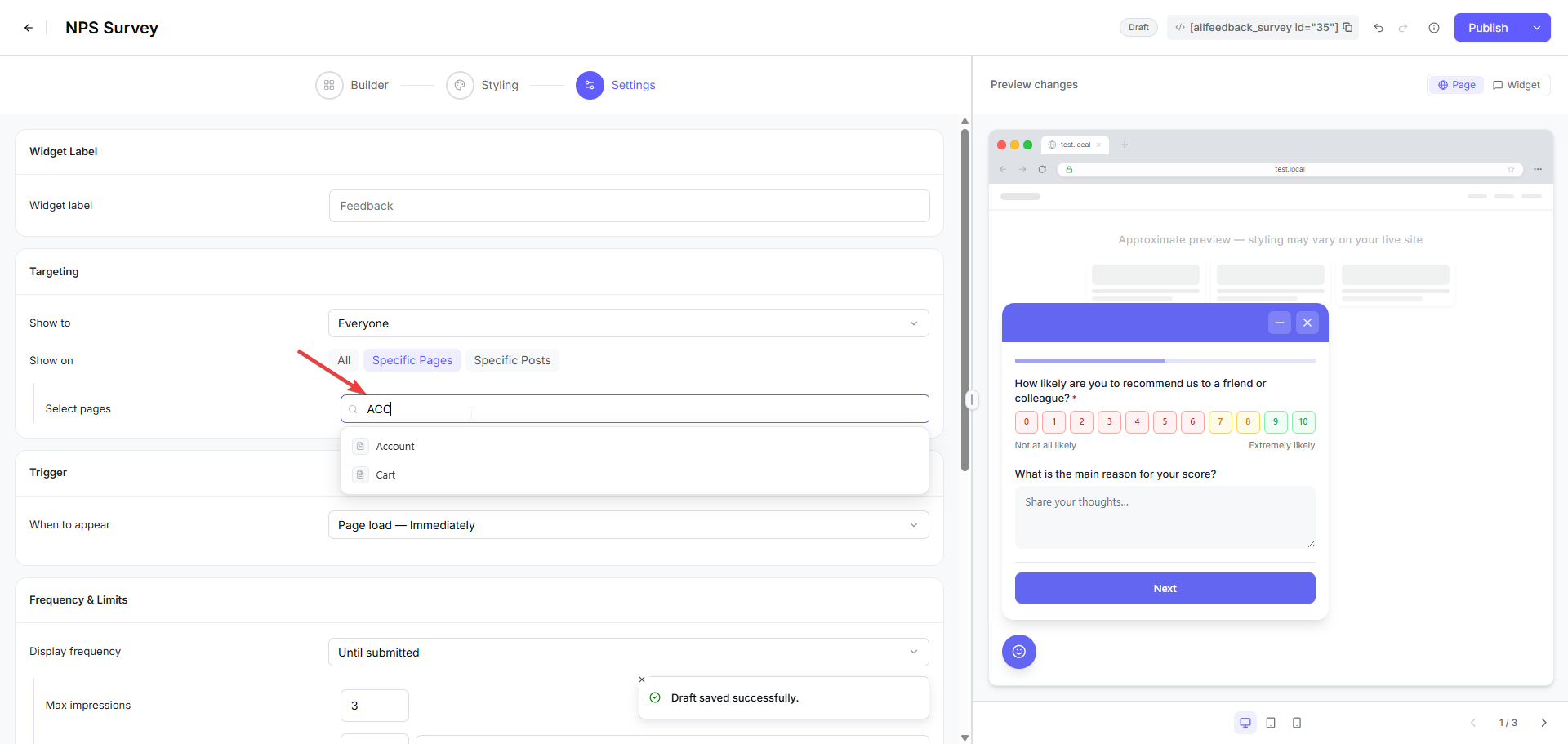
If you chose Specific Pages or Posts, use the search box to find and select the pages or posts where the widget should appear
Optionally, add exclusion rules to prevent the widget from appearing on certain pages even if they match the inclusion rules
Save the form
Searching for Pages and Posts
When you select Specific Pages or Posts, a search box appears. Type a keyword to search for published pages and posts by title. Results are paginated, showing up to 50 items per page. Click on any item to add it to the targeting list.
Only published content is available for selection. Drafts and private posts do not appear in the search results.
Important Notes About Widget Targeting
Exclusion rules always win. If a page matches both an inclusion rule and an exclusion rule, the form will not appear.
If you set a form to Specific Pages or Posts but do not select any pages or posts, the widget will never appear.
Only one widget is shown per page. If multiple forms match the same page, the most recently published form the visitor is still eligible to see is displayed — after audience (logged-in/logged-out) and frequency limits are applied.
The form must have Published status. Draft forms are never displayed as widgets, even if their targeting rules match.
Method 2: Shortcode Embeds
Shortcodes let you embed a specific form directly into any post, page, or widget area that supports WordPress shortcodes.
When to Use Shortcodes
You want the form to appear inline within your content
You are using the classic editor instead of the block editor
You need to embed a form in a widget area or custom template
Getting the Shortcode
Go to wp-admin → AllFeedback → All Forms
Find the form you want to display in the table
Look in the Shortcode column for that form
Click the copy icon next to the shortcode to copy it to your clipboard
The shortcode format is:
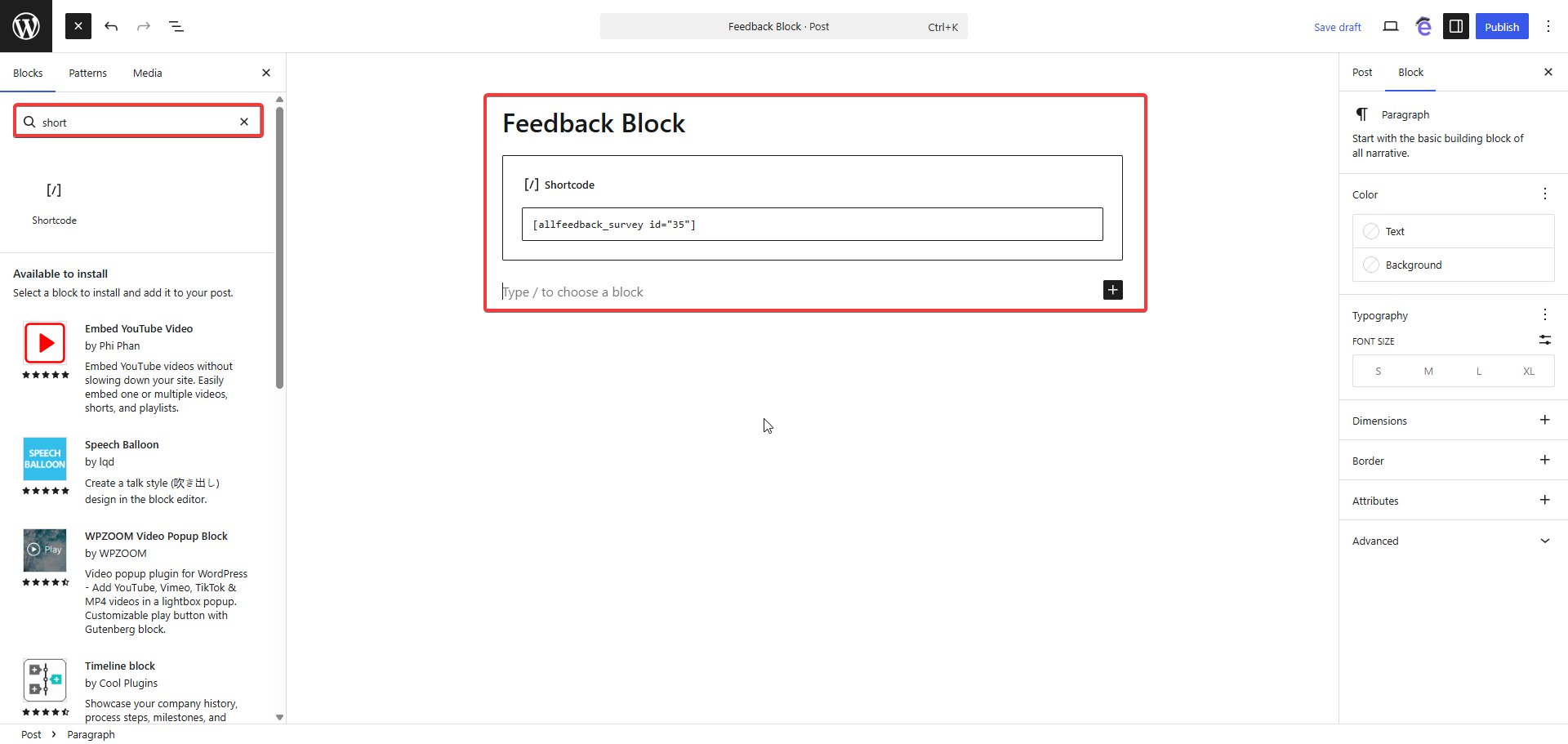
[allfeedback_survey id="X"]Replace X with your form ID number.
Adding the Shortcode to a Page
Edit the post or page where you want the form to appear
Place your cursor where you want the form to display
Paste the shortcode you copied
Save or publish the page
The form will appear inline at that exact location when visitors view the page.
Important Notes About Shortcodes
The form must have a Published status to display to visitors. Draft forms will not appear even if the shortcode is present.
If you enter an invalid form ID or the form is deleted, nothing will display where the shortcode is placed.
To preview a draft form before publishing, use the Preview panel in the form builder — drafts are never rendered through the shortcode on the front end.
Method 3: Gutenberg Block Embeds
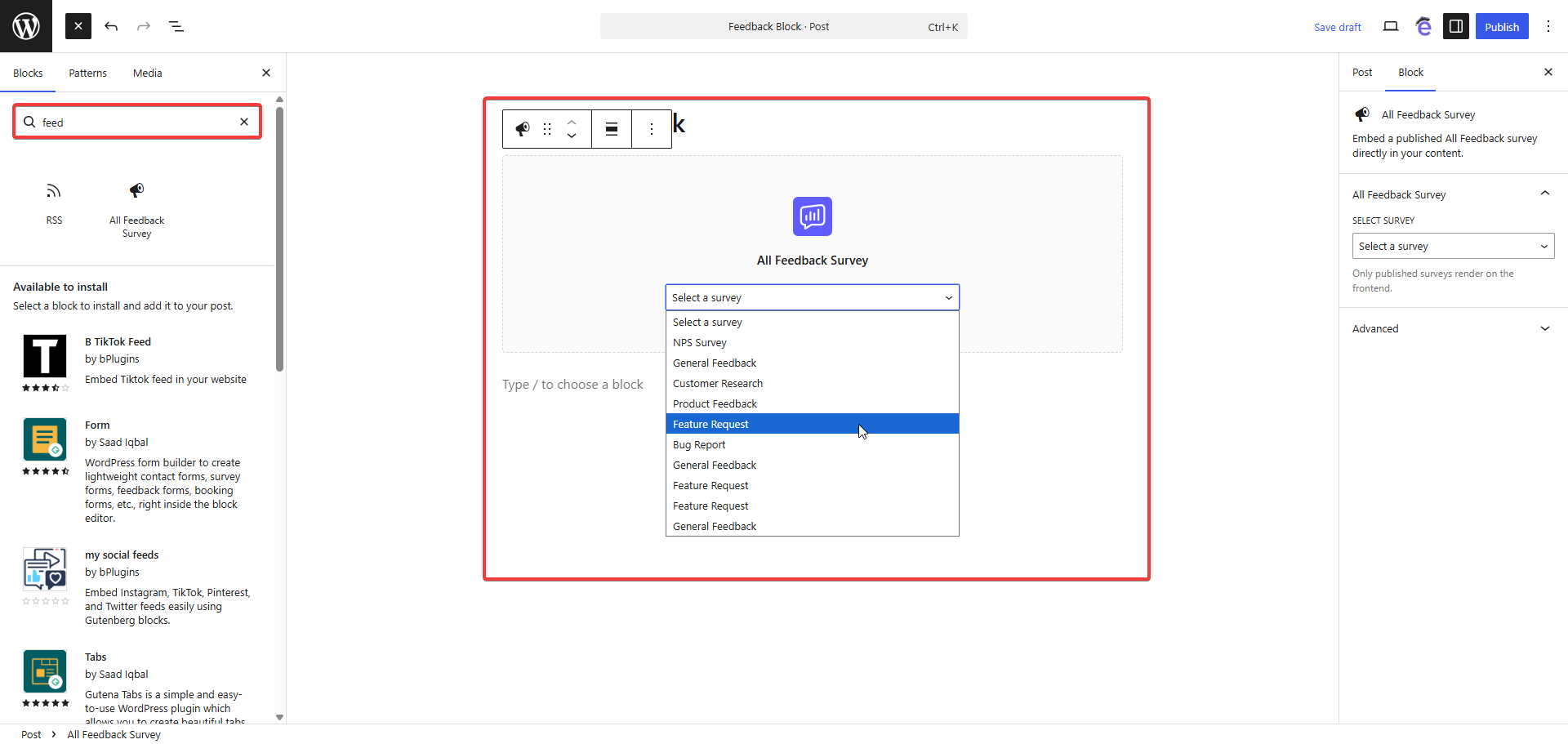
If you use the WordPress block editor, you can add forms using the AllFeedback Survey block instead of shortcodes.
Prerequisites
WordPress 6.5 or higher
At least one published form must exist
You must be editing a post or page in the block editor
When to Use the Block
You are using the block editor and prefer a visual interface
You want to select the form from a dropdown instead of copying a shortcode
You want the form embedded inline within your content
Adding the Block
Open the post or page in the block editor
Click the + button to open the block inserter
Search for Survey or AllFeedback Survey
Click the AllFeedback Survey block to insert it
In the block settings panel, choose which form to display from the dropdown
Save or publish the page
The selected form will appear inline at the block location when visitors view the page.
Important Notes About Blocks
The block only works in the block editor. It is not available in the classic editor.
The form must be Published to display to visitors. If the form is set to Draft, nothing will appear.
If you delete the form after embedding it, the block will render nothing on the front end.
Combining Display Methods
You can use multiple display methods for the same form or different forms:
A form can be both embedded via shortcode on specific pages and displayed as a targeted widget on other pages.
You can embed one form inline using a block and display a different form as a floating widget on the same page.
If a page has both an embedded form and a matching targeted widget, both will appear — the embedded form inline and the widget floating.
Troubleshooting
Form Does Not Appear
If your form is not displaying, check the following:
The form status must be Published. Draft forms are not visible to regular visitors.
For targeted widgets, verify the current page matches the targeting rules and is not excluded.
For targeted widgets set to Specific Pages or Posts, ensure at least one page or post is selected.
For shortcodes and blocks, verify the form ID is correct and the form has not been deleted.
If multiple forms target the same page, only one widget shows — the most recently published form the visitor is still eligible to see.
Widget Appears on Wrong Pages
Check the targeting mode. If set to All Pages, the widget appears everywhere.
Review your inclusion and exclusion rules. Exclusions always override inclusions.
Verify you selected the correct pages or posts in the targeting panel.
Block or Shortcode Shows Nothing
Confirm the form is Published, not Draft.
Verify the form ID in the shortcode matches an existing form.
For blocks, ensure you selected a form in the block settings dropdown.
Form Saved as Draft Instead of Publishing
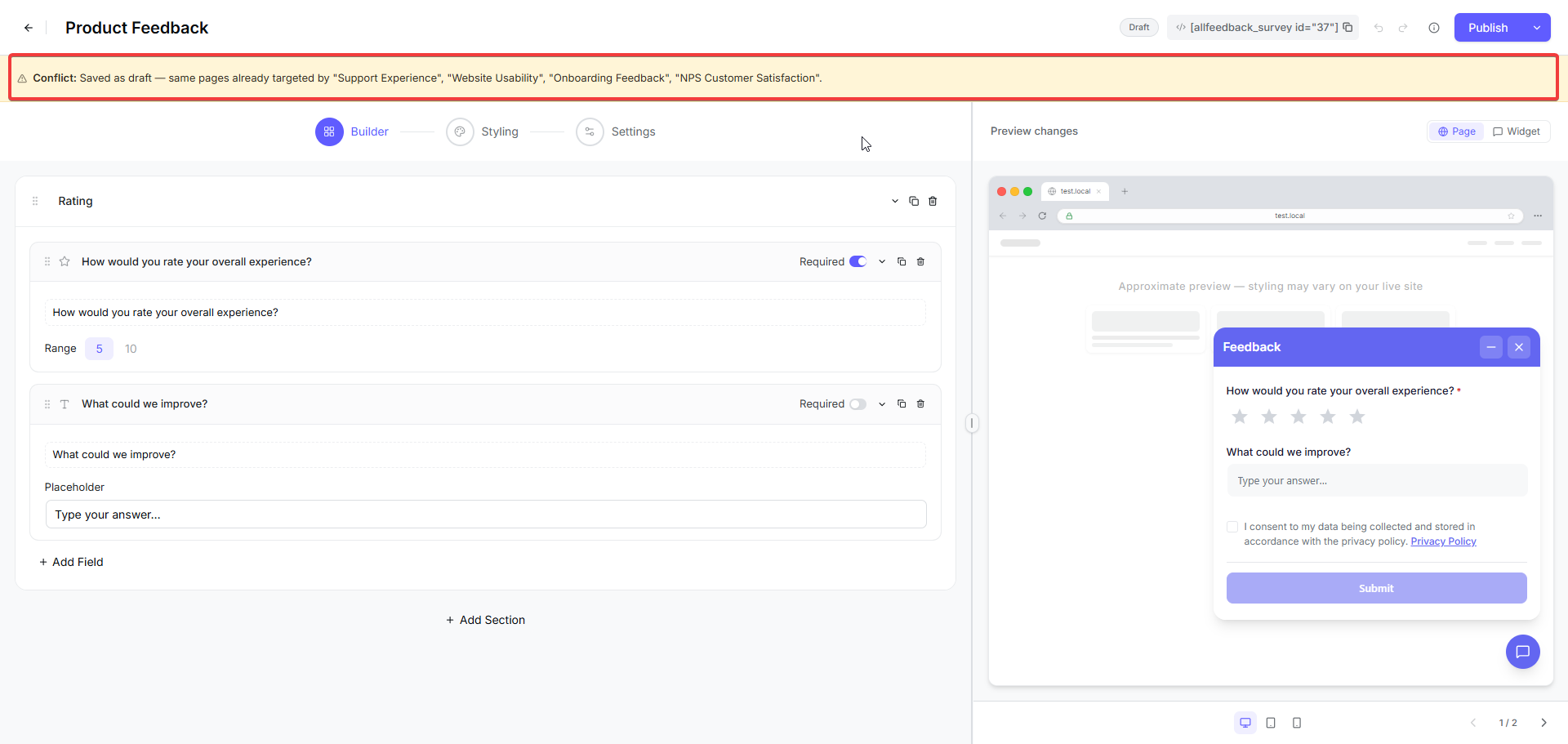
If you click Publish but the form stays a Draft with a notice like "Conflict: Saved as draft — same pages already targeted by …," another published form is already targeting the same pages. Because only one feedback widget can appear per page, AllFeedback won't publish a second form that competes for those pages.
A conflict is flagged when:
Your form — or another published form — is set to All Pages (All Pages overlaps with every other form), or
Your form targets Specific Pages or Posts that include at least one page or post already targeted by another published form.
To resolve it:
Open the form's Settings tab and, under Targeting, choose Specific Pages or Posts with pages that none of the listed forms already cover.
Avoid All Pages if you already have other published forms — it will always conflict.
Or unpublish (or re-target) the conflicting forms named in the notice so they no longer cover those pages.
Once the targeting no longer overlaps, click Publish again.