
Field types
Overview of AllFeedback's seven field types for collecting user feedback, including short text, long text, and configuration options for each survey field.
Last updated on Jun 22, 2026
Field types
AllFeedback provides seven field types to help you collect different kinds of feedback from your users. Each field type is designed for specific use cases and offers unique configuration options to match your survey needs.
Every field shares two options — a Required toggle and a Question label (the label supports rich-text formatting such as bold, italics, and lists). The sections below note the extra options specific to each type.
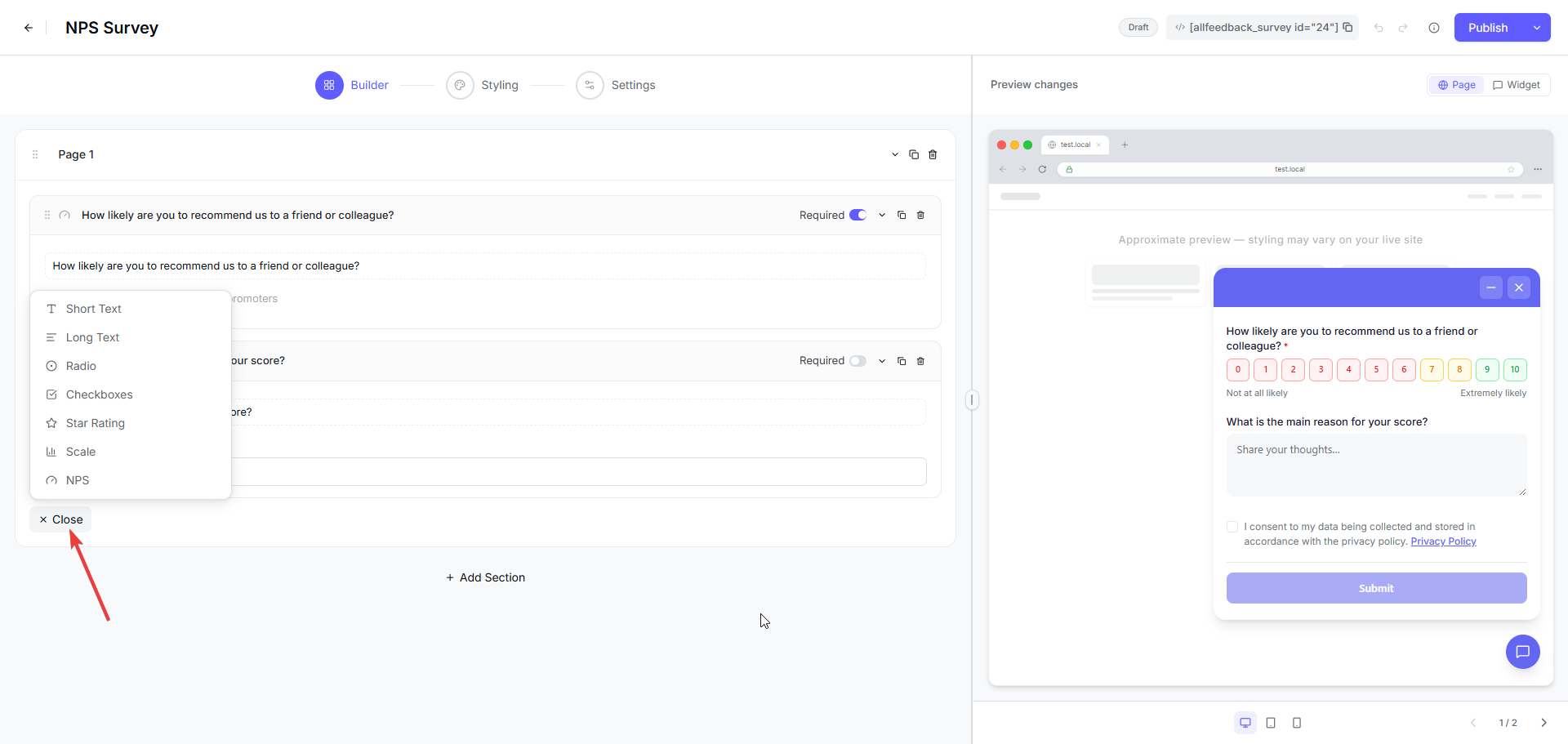
Short Text
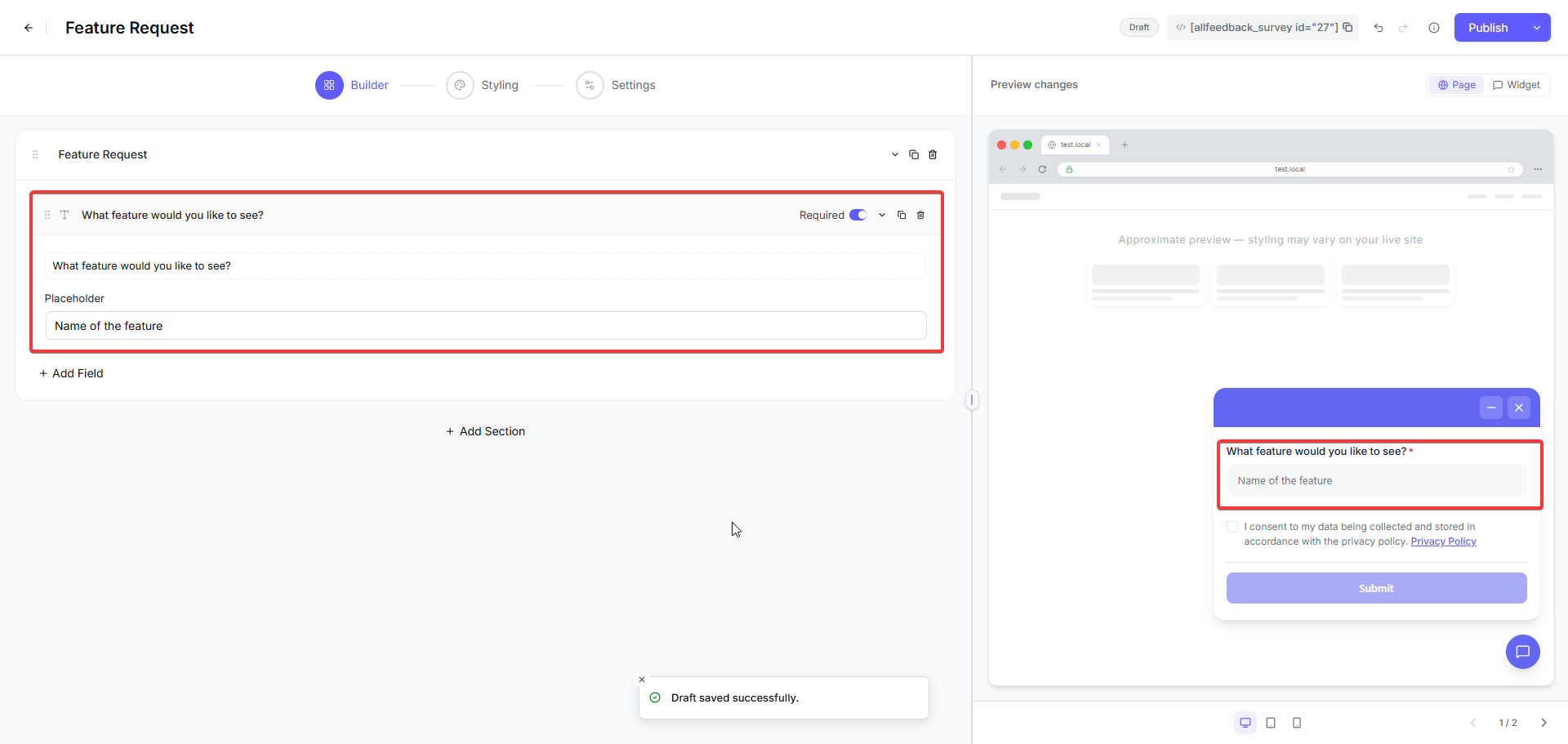
Short text fields collect brief, single-line responses from users. They are ideal when you need concise answers that fit in one line.
When to use
Collecting names, email addresses, or job titles
Asking for brief identifiers like order numbers or product names
Gathering short, specific answers that do not require multiple sentences
Configuration options
Required toggle — mark the field as mandatory
Question label — the text shown to users
Placeholder — hint text shown inside the empty input
Long Text
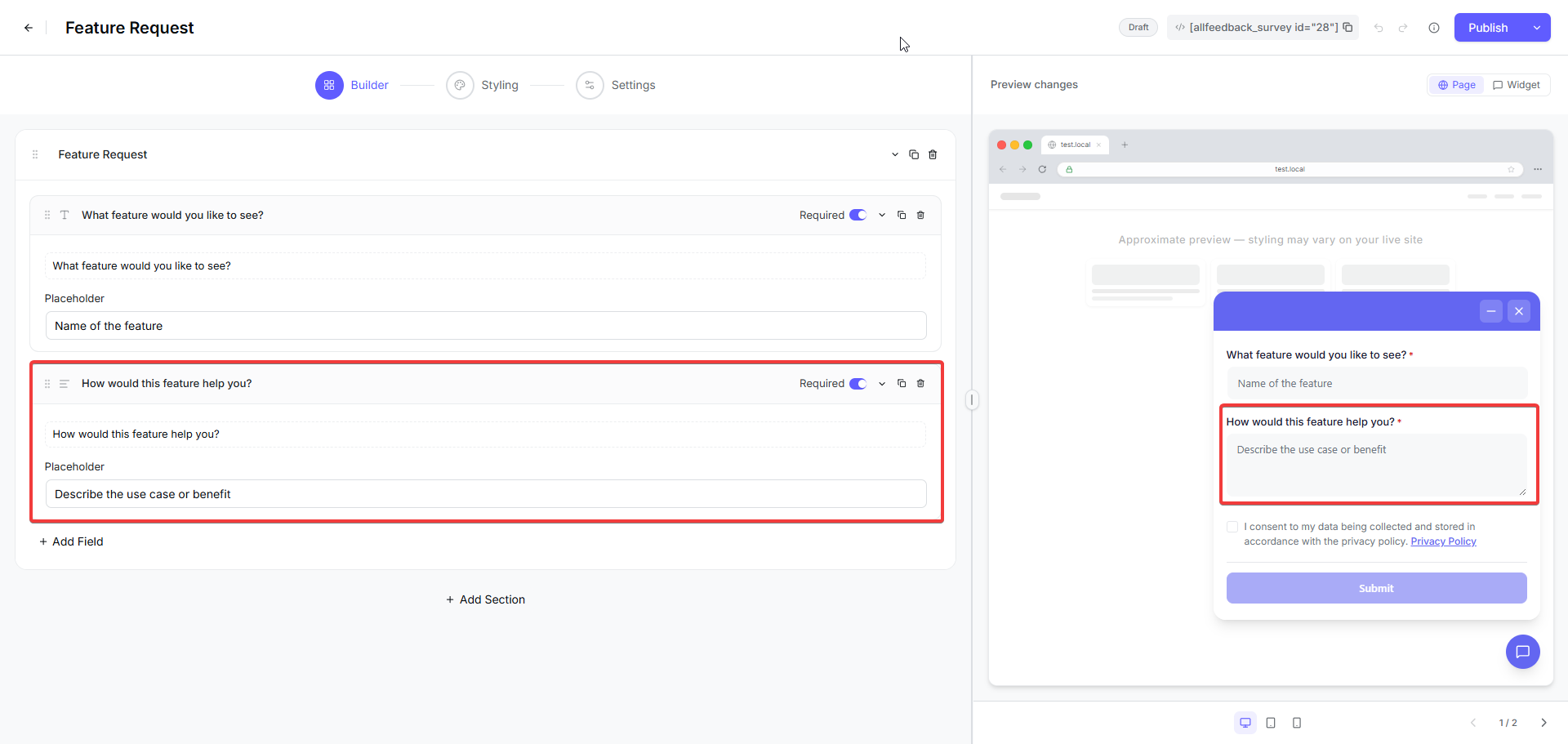
Long text fields provide a multi-line text area where users can write detailed responses. Use this field type when you need explanations, descriptions, or open-ended feedback.
When to use
Asking users to describe problems or issues in detail
Collecting suggestions or feature requests that need explanation
Gathering testimonials or detailed opinions
Any question where a single line is not enough space
Configuration options
Required toggle — mark the field as mandatory
Question label — the text shown to users
Placeholder — hint text shown inside the empty text area
Radio (Single Choice)
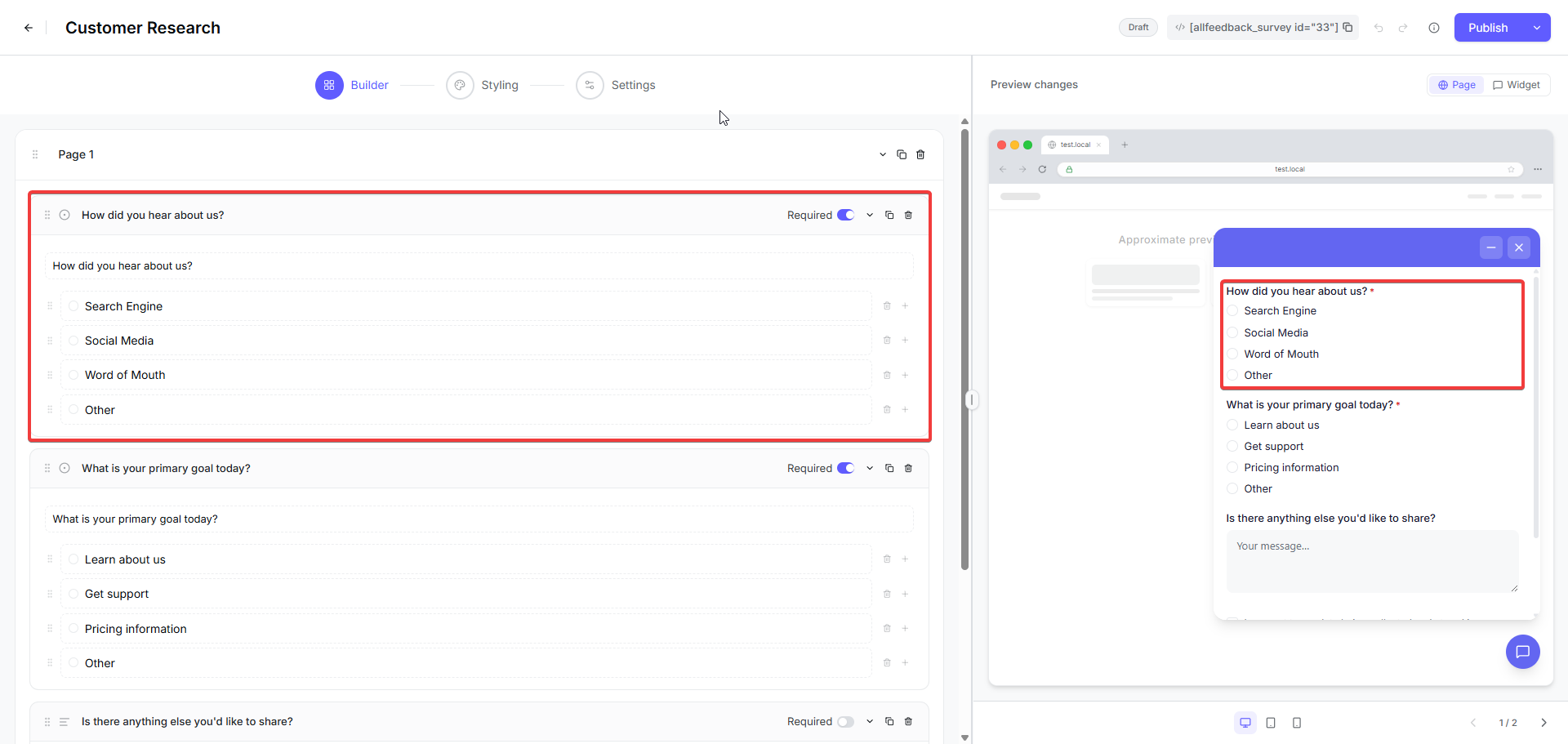
Radio fields let users select exactly one option from a list of choices. Once a user selects an option, they cannot deselect it without choosing a different option.
When to use
Asking users to pick one answer from multiple options
Collecting demographic information like age range or location
Offering mutually exclusive choices where only one can apply
Configuration options
Required toggle — mark the field as mandatory
Question label — the text shown to users
Choice options — add, edit, remove, and reorder the available options
Checkboxes (Multiple Choice)
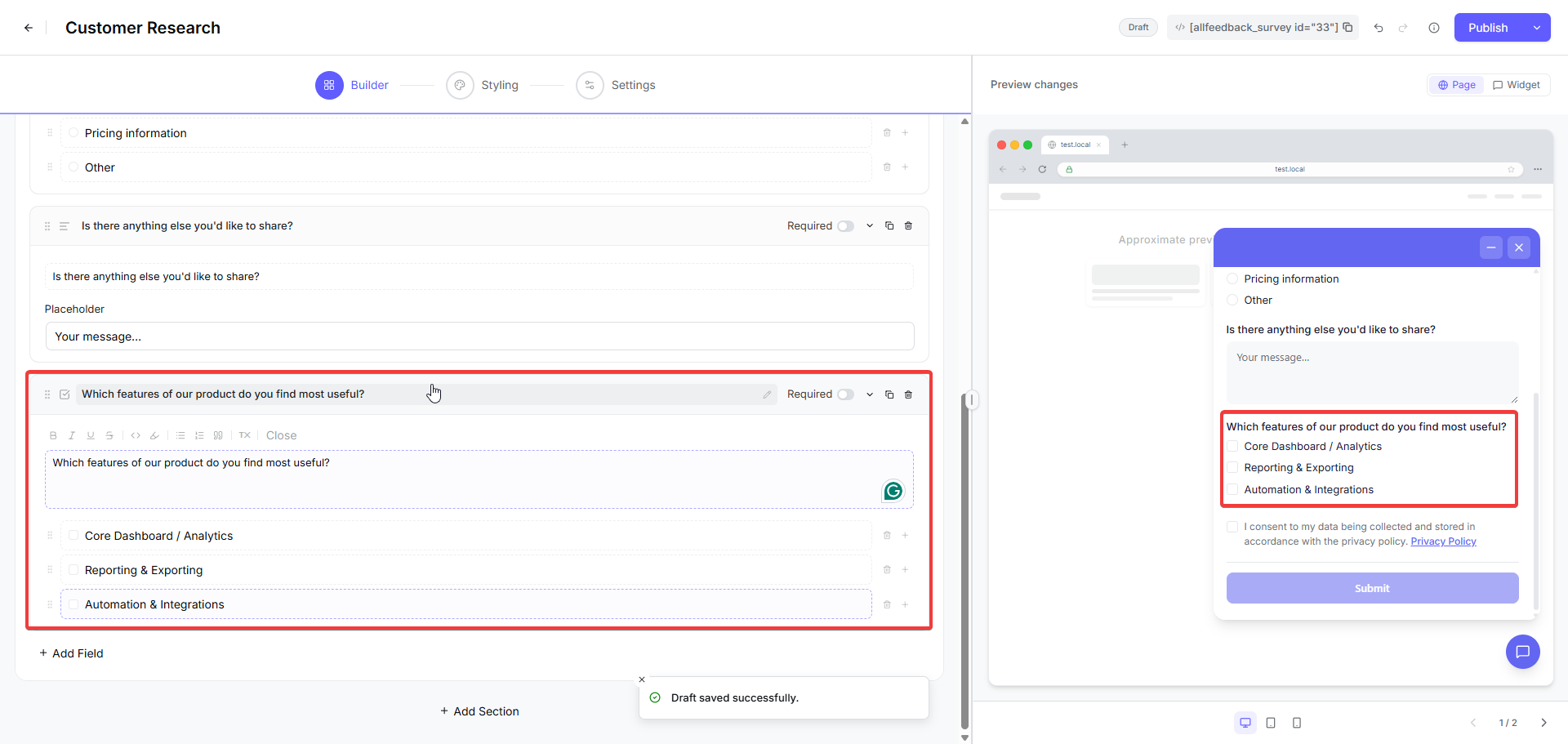
Checkbox fields allow users to select multiple options from a list. Users can check as many or as few boxes as they want, including none.
When to use
Asking users to select all options that apply to them
Collecting preferences where multiple answers are valid
Gathering information about features used or problems experienced
Configuration options
Required toggle — mark the field as mandatory
Question label — the text shown to users
Choice options — add, edit, remove, and reorder the available options
Star Rating
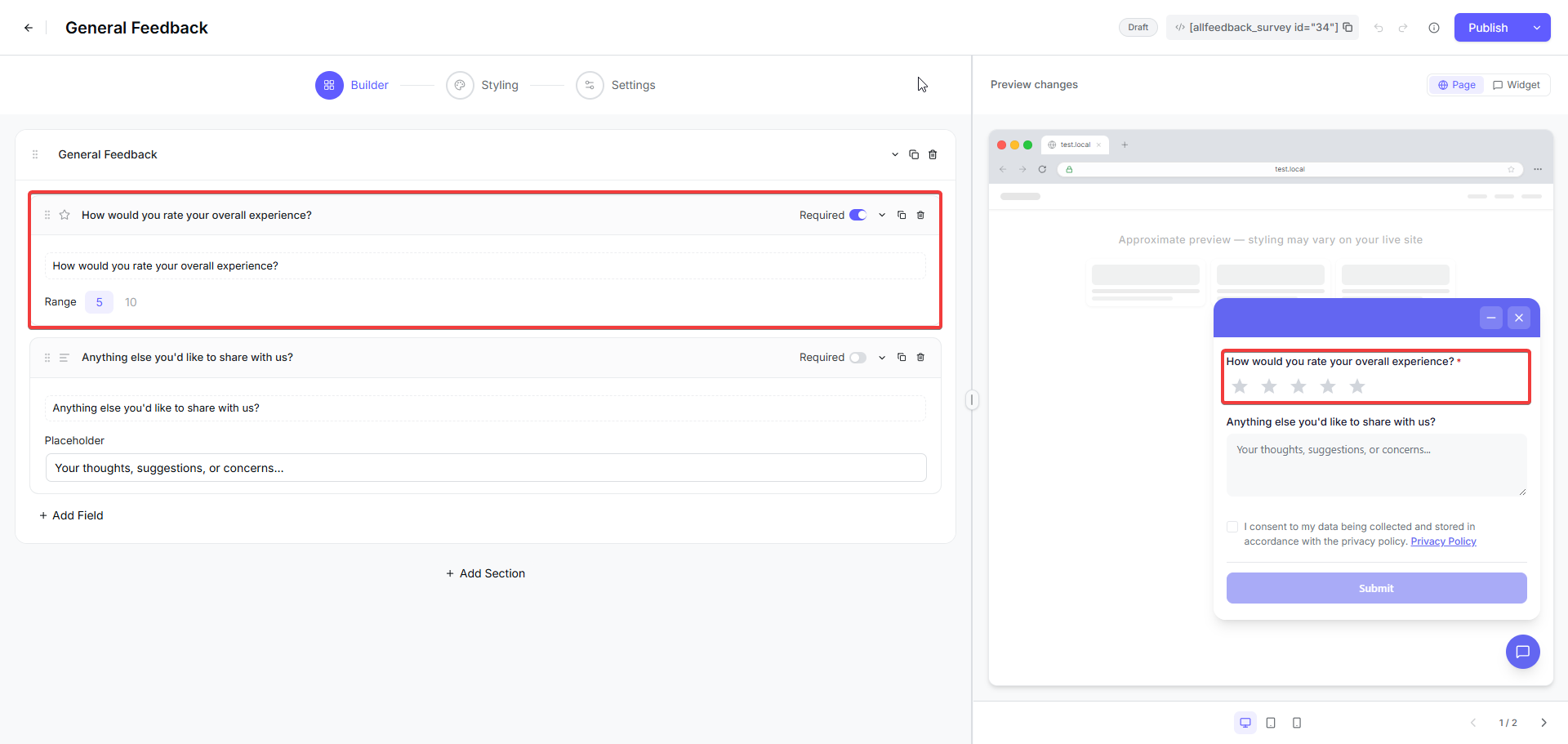
Star rating fields display a row of stars that users can click to rate something. This field type provides a visual, intuitive way to collect satisfaction or quality ratings.
When to use
Measuring satisfaction with a product, service, or experience
Asking users to rate quality, ease of use, or performance
Collecting quick visual feedback that is easy to understand
Configuration options
Required toggle — mark the field as mandatory
Question label — the text shown to users
Range — choose a 5-star or 10-star scale
Scale
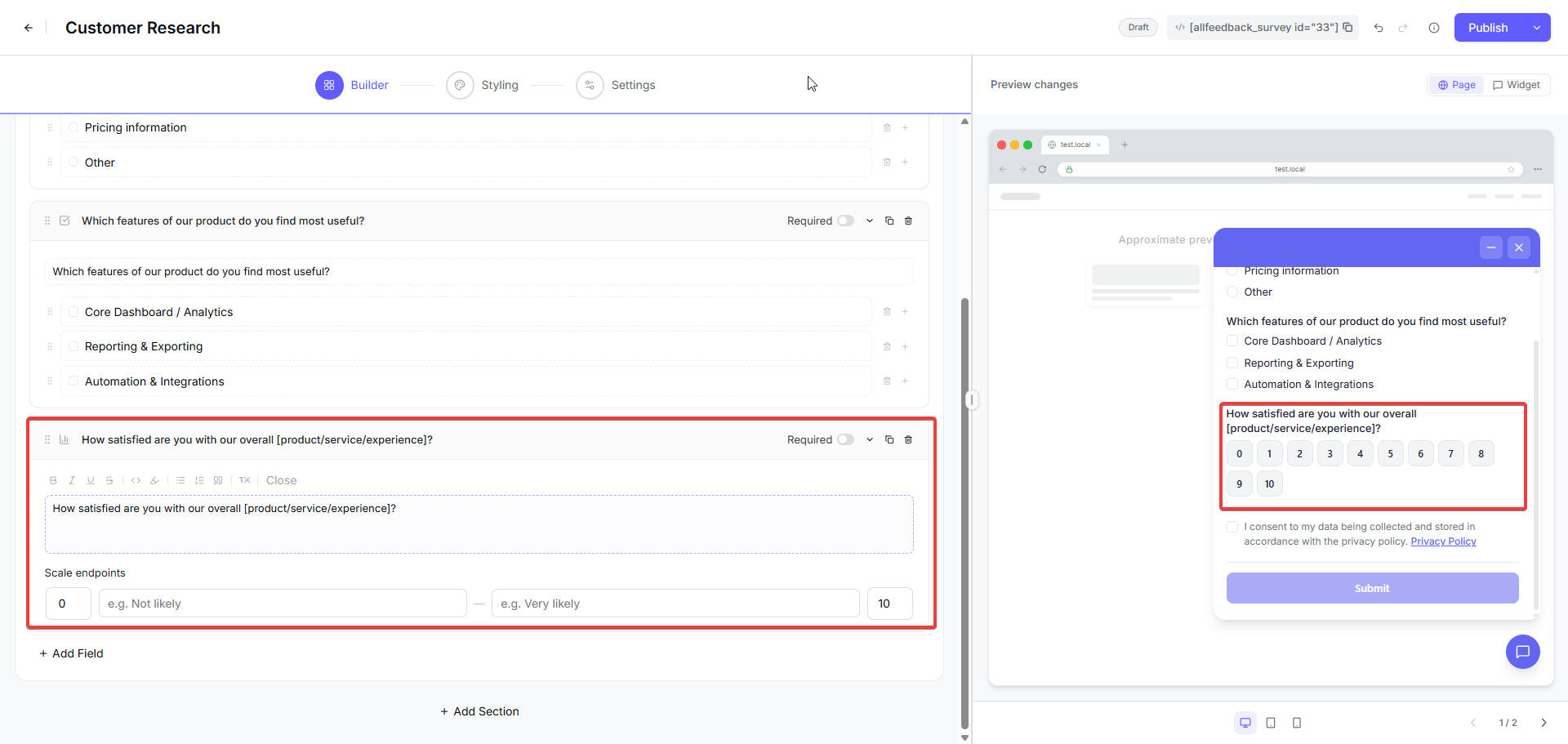
Scale fields let users select a number from a defined range. You can customize the endpoints to match your rating system.
When to use
Collecting numeric ratings on a custom scale
Measuring agreement levels or intensity of feelings
Asking users to rate something on a scale that is not 1–5 stars
Configuration options
Required toggle — mark the field as mandatory
Question label — the text shown to users
Scale endpoints — set the minimum and maximum values, plus optional low/high labels (for example, "Not likely" → "Very likely")
NPS (Net Promoter Score)
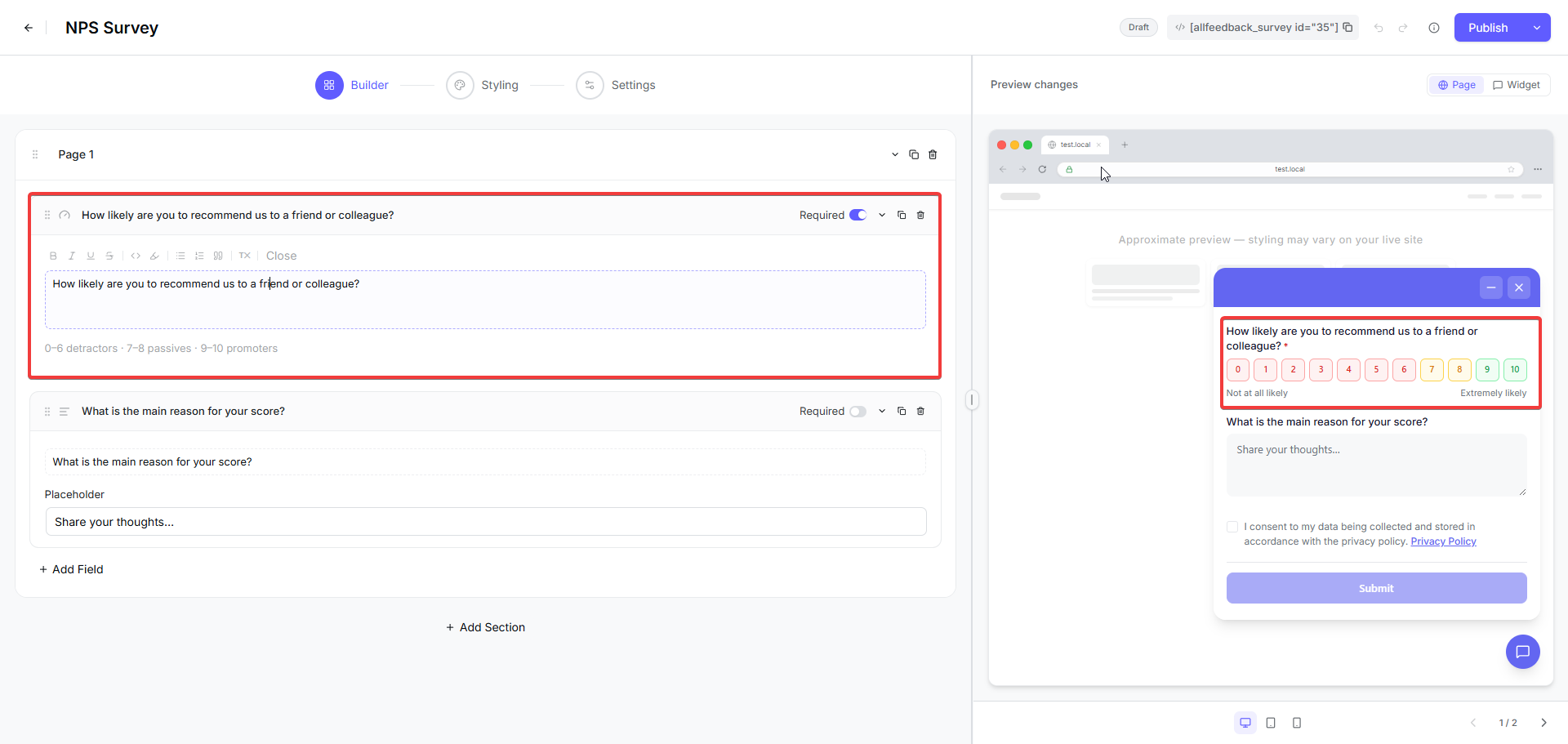
NPS fields display a 0-10 scale specifically designed to measure how likely users are to recommend your product or service. This field type automatically calculates your Net Promoter Score by categorizing responses into Promoters, Passives, and Detractors.
When to use
Measuring customer loyalty and likelihood to recommend
Tracking your Net Promoter Score over time
Benchmarking customer satisfaction against industry standards
Configuration options
Required toggle — mark the field as mandatory
Question label — the text shown to users
The 0–10 scale and the Promoter/Passive/Detractor categories are fixed and can't be customized.
How NPS scoring works
Responses are automatically grouped into three categories:
Promoters — users who select 9 or 10
Passives — users who select 7 or 8
Detractors — users who select 0 through 6
Your NPS score is calculated as: ((Promoters − Detractors) ÷ Total Responses) × 100. The score ranges from −100 to +100, with higher scores indicating stronger customer loyalty.