
Form settings
Configure survey display locations, visitor targeting options, and post-submission behavior for individual AllFeedback forms.
Last updated on Jun 22, 2026
Form settings
Start writing your documentation here...
Form settings control how your survey appears to visitors, where it displays, and how it behaves after submission. These settings apply to individual surveys and can be customized separately for each form you create.
Where to Find the Form Settings Panel
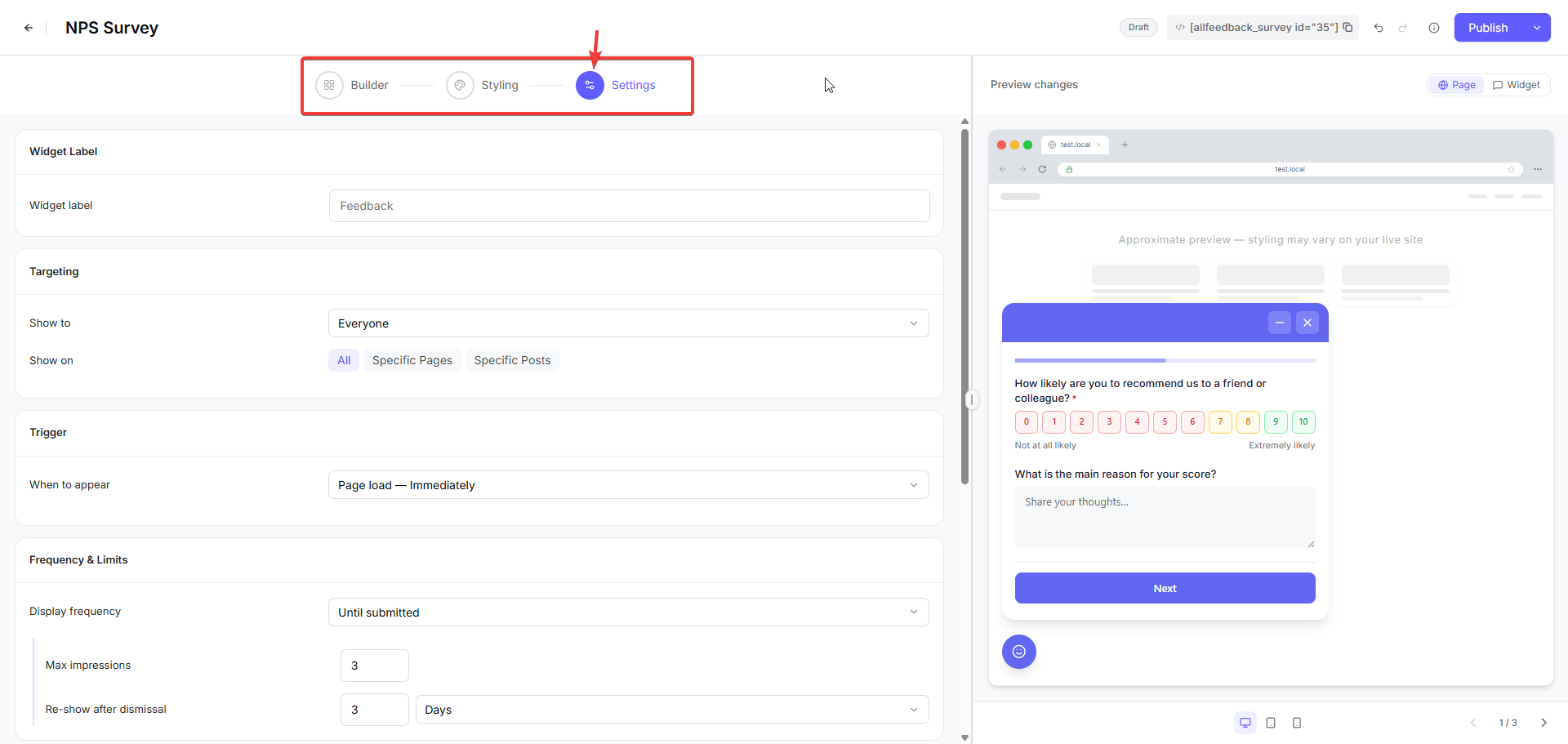
When editing a survey in AllFeedback, you'll see three tabs at the top of the form editor: Builder, Styling, and Settings. Click the Settings tab to access all settings options for that specific survey.
Targeting
Targeting controls where your survey widget appears on your website. This setting determines which pages or posts will display the survey to visitors.
Display On Options
You can choose from three targeting modes:
All Pages — The survey appears on every page of your website
Specific Pages — The survey only appears on pages you select
Specific Posts — The survey only appears on posts you select
The default setting is All Pages, which means your survey will be visible site-wide unless you restrict it.
Selecting Specific Pages or Posts
When you choose Specific Pages or Specific Posts, you need to select which content the survey should appear on:
Select either Specific Pages or Specific Posts from the Display On options
Use the search box to find pages or posts by title
Click on items in the search results to add them to your targeting list
Save your survey to apply the targeting rules
The search returns up to 50 results per page and only shows published content.
Important Targeting Notes
If you select Specific Pages or Specific Posts but do not add any page or post IDs, the survey will never appear to anyone
The survey must be Published for targeting to take effect — draft surveys are never shown to visitors regardless of targeting settings
Targeting rules are checked every time a visitor loads a page, so changes take effect immediately after you save
Widget Label
The knowledge base does not include details about the Widget Label setting. This setting likely controls the text displayed on the survey widget button or tab that visitors see before opening the survey.
Trigger
The knowledge base does not include details about the Trigger setting. This setting likely controls when the survey widget appears to visitors, such as on page load, after a delay, on scroll, or on exit intent.
Frequency & Limits
The knowledge base does not include details about the Frequency & Limits setting. This setting likely controls how often the same visitor sees the survey, such as once per session, once per day, or once ever.
Thank You Page
The knowledge base does not include details about the Thank You Page setting. This setting likely controls what visitors see after submitting the survey, such as a custom message or a redirect to another page.
Submit Buttons
The knowledge base does not include details about the Submit Buttons setting. This setting likely controls the text and appearance of the button visitors click to submit their survey responses.
Saving Your Settings
After configuring your form settings:
Click the Publish button to save your changes and make them live
If your survey is already published, the button will show as an update option
Settings changes take effect immediately after saving
You can also use the keyboard shortcut Ctrl+S to save your settings quickly while editing.