
Styling a form
Customize your survey's appearance with colors, typography, and layout options—or inherit global widget settings to maintain brand consistency across your site.
Last updated on Jun 22, 2026
Styling a form
Start writing your documentation here...
The Styling panel in AllFeedback gives you control over how your survey looks to visitors. You can customize colors, typography, and visual elements to match your brand — or leave everything at default and let the survey inherit your global widget settings.
Where to Find the Styling Panel
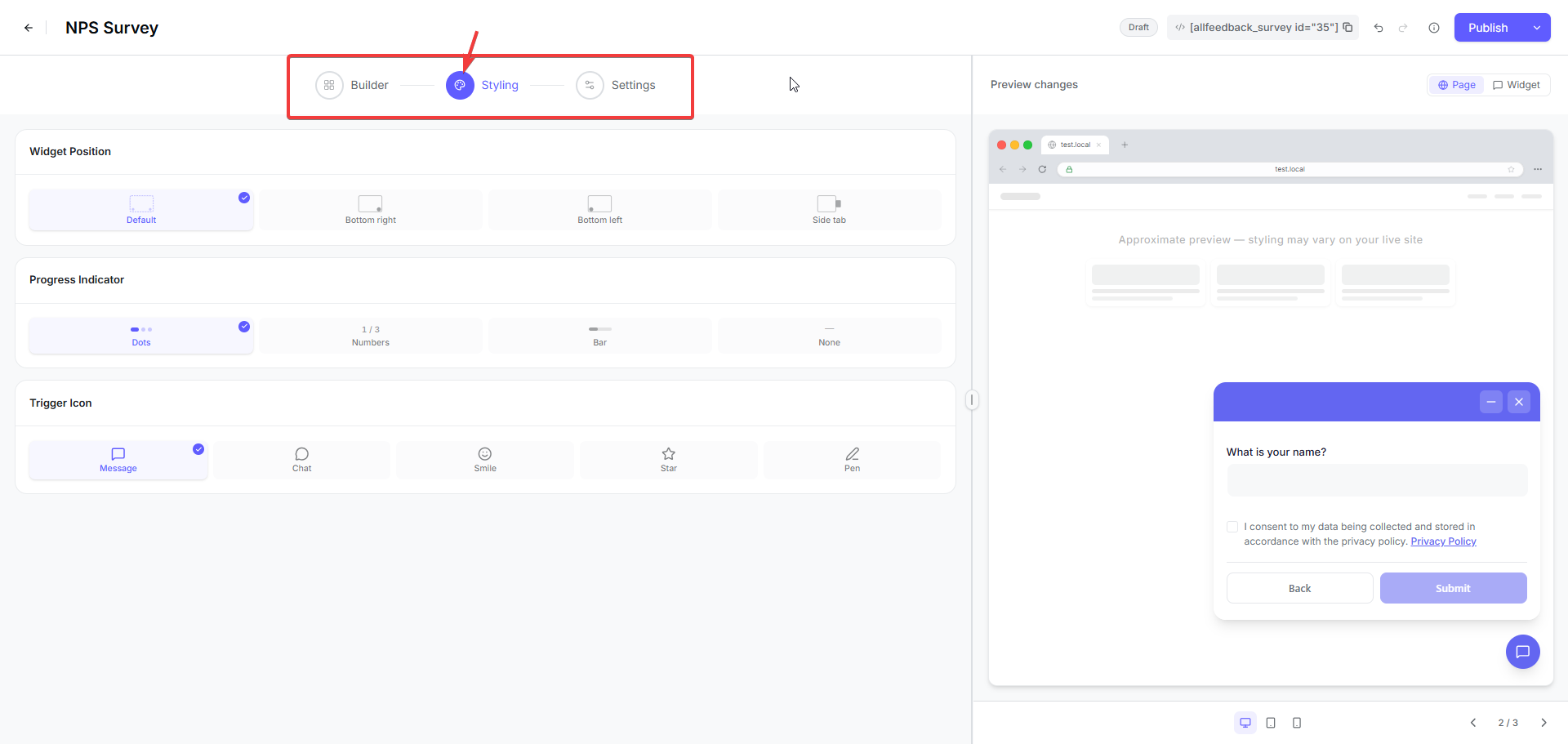
When editing a survey in AllFeedback, you'll see three tabs at the top of the form editor: Builder, Styling, and Settings. Click the Styling tab to access all visual customization options for that specific survey.
Styling Options
Widget Position
Controls where this survey's launcher appears on the page, overriding the global position.
Default — inherit the global widget position set under Settings → General
Bottom right
Bottom left
Side tab — a vertical tab pinned to the right edge of the screen
Leave this on Default if you want the survey to follow your site-wide setting.
Progress Indicator
Only shown for multi-step surveys (forms with more than one step). Sets how progress through the steps is displayed to visitors.
Dots — a row of dots, one per step (default)
Numbers — a "1 / 3" style step counter
Bar — a filling progress bar
None — hide the progress indicator entirely
Single-step surveys don't show this option, since there's no progress to display.
Trigger Icon
Only shown when the widget position is Bottom right or Bottom left (the Side tab position uses a text label instead of an icon button). Chooses the icon displayed on the floating widget button.
Message (default)
Chat
Smile
Star
Pen
How Styling Works: Global vs. Per-Survey
AllFeedback uses a two-level styling system:
Global widget settings — these apply to all surveys on your site by default
Per-survey styling — these override the global settings for a specific survey
When you create a new survey, it automatically inherits the global widget color and position you've set under AllFeedback → Settings → General. If you customize the styling for an individual survey, those changes take priority over the global defaults — but only for that survey.
Global Widget Settings
Before styling individual surveys, you should set your global widget defaults. These act as the baseline appearance for all surveys unless you override them.
To configure global settings:
Go to AllFeedback → Settings in your WordPress admin
Click the General tab
Under the Widget section, you'll see two settings:
Widget color — Enter a HEX color code (for example, #8F4EEE for purple). This color is used for the feedback widget button and accent elements across all surveys.
Position — Choose where the widget button appears on your pages: Bottom left, Bottom right, or Side tab.
Click Save Changes
These settings apply site-wide. Every survey you create will use this color and position unless you customize it in the survey's own Styling panel.
Per-Survey Styling Options
When you open the Styling tab for a specific survey, you can override the global settings and customize the appearance just for that survey. The exact styling options available in the Styling panel are not detailed in the current knowledge base, but the system stores styling data in the survey's styling field in the database.
Any changes you make in the Styling panel are saved to that survey only. Other surveys on your site continue to use the global widget color and position unless you customize them individually.
Preview Your Changes
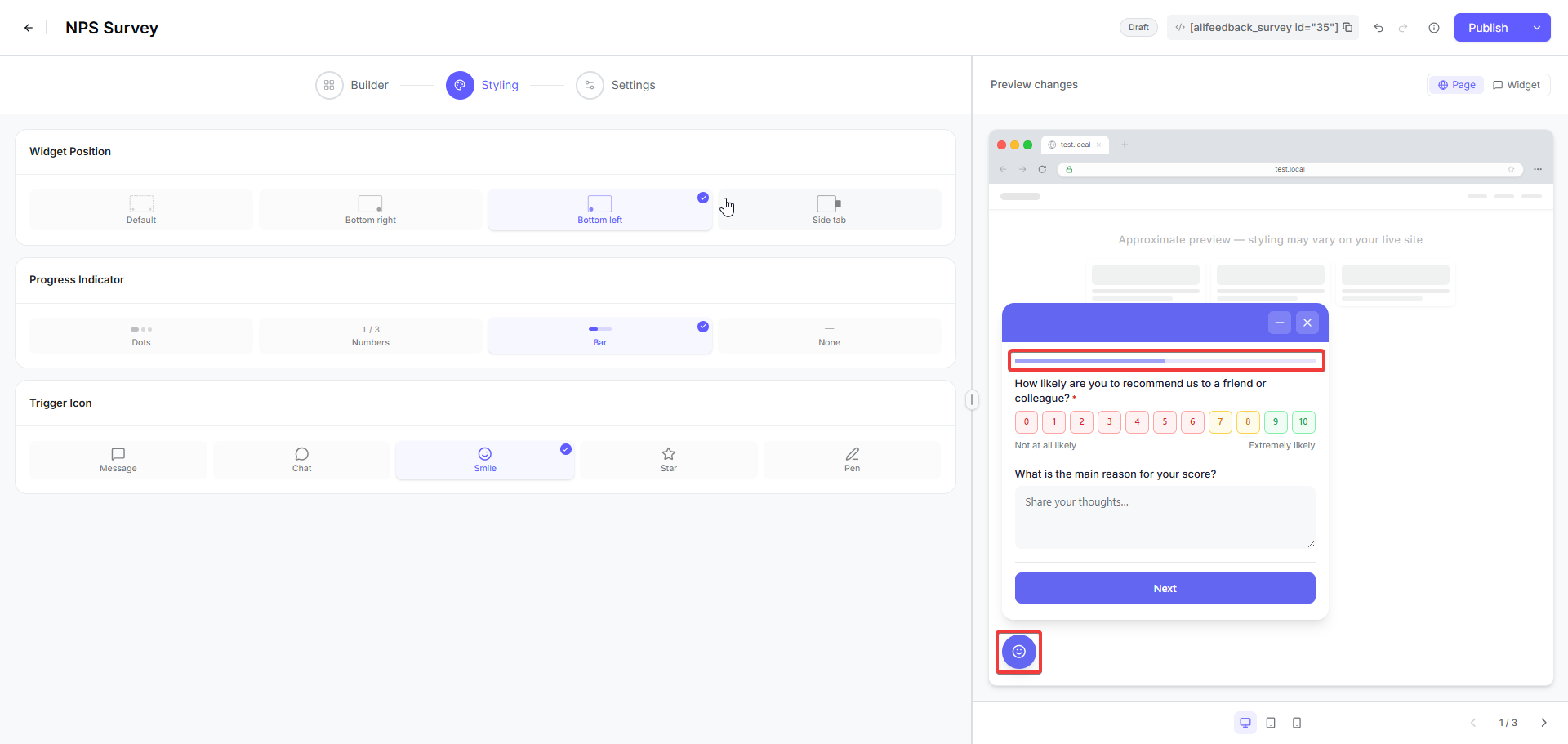
The form editor includes a Preview changes panel on the right side of the screen. As you adjust styling options, the preview updates in real time so you can see exactly how the survey will look to visitors before you publish it.
The preview panel shows:
A browser mockup with your survey rendered inside
How the widget button appears on the page
How your chosen colors and typography are applied
You can also toggle between device previews to see how the survey looks on different screen sizes.
When to Use Global vs. Per-Survey Styling
Use global widget settings when:
You want all surveys to have a consistent brand appearance
You're just getting started and want a simple setup
You don't need different surveys to look different from each other
Use per-survey styling when:
You want a specific survey to stand out or match a particular campaign
You're running surveys for different brands or products on the same site
You need different visual treatments for different types of feedback (for example, a bug report form might use red accents while a feature request form uses blue)