
Advanced settings
Configure privacy controls, activity logging, and data management options that apply across your entire AllFeedback installation.
Last updated on Jun 22, 2026
Advanced settings
Advanced settings give you control over privacy, logging, and data management for AllFeedback. They apply across your entire site and affect how the plugin handles visitor information, records internal activity, and manages data when you uninstall.
Accessing Advanced Settings
Go to wp-admin → AllFeedback → Settings → Advanced.
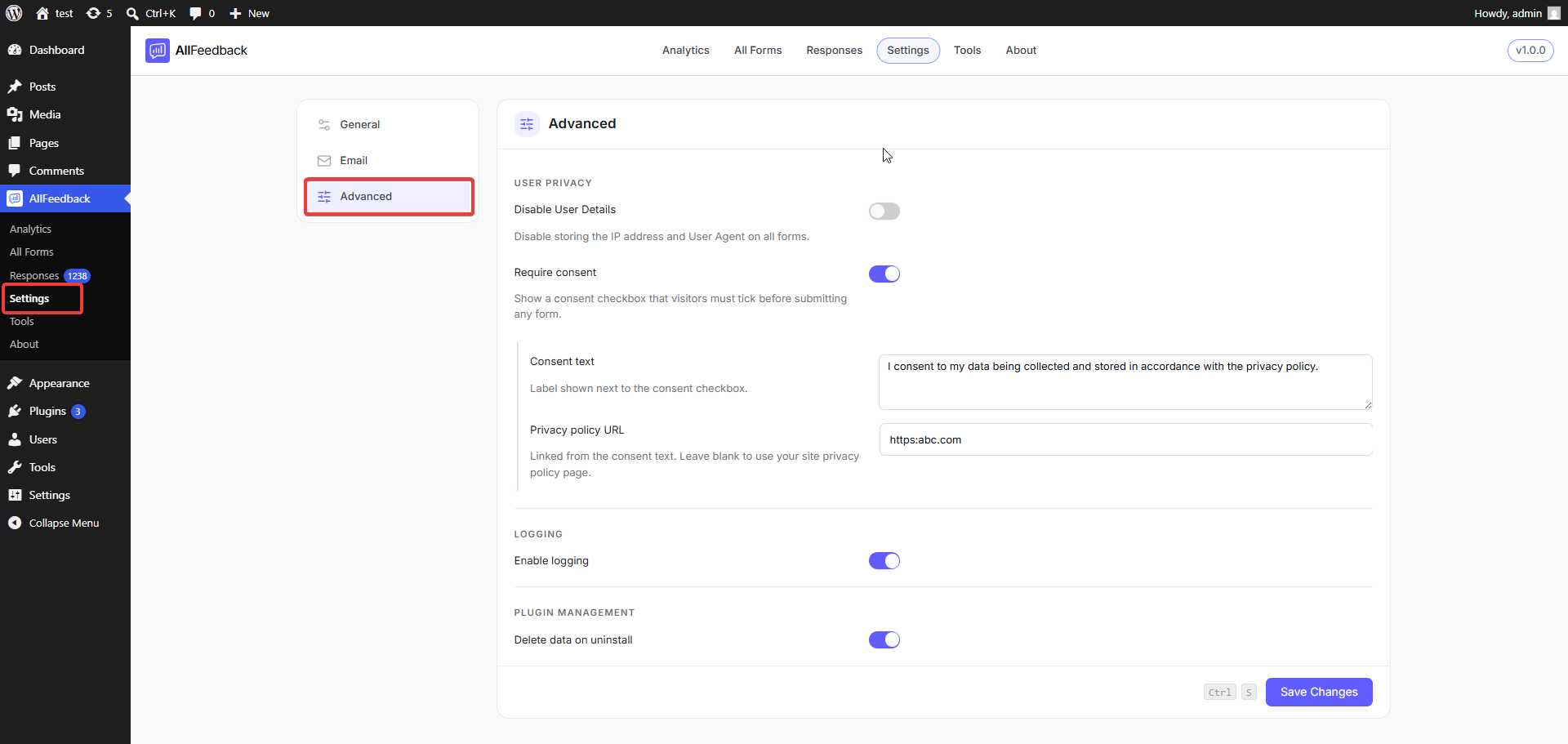
Privacy Settings
Privacy settings control what visitor information AllFeedback stores when responses are submitted.
Disable User Details
When enabled, AllFeedback stops storing the visitor's IP address and user agent on all forms — useful when you want to collect feedback more anonymously for privacy compliance.
To enable it:
Go to Settings → Advanced → Privacy
Toggle on Disable User Details
Click Save Changes
This applies to all surveys and affects new submissions; it doesn't remove data already stored.
Require Consent
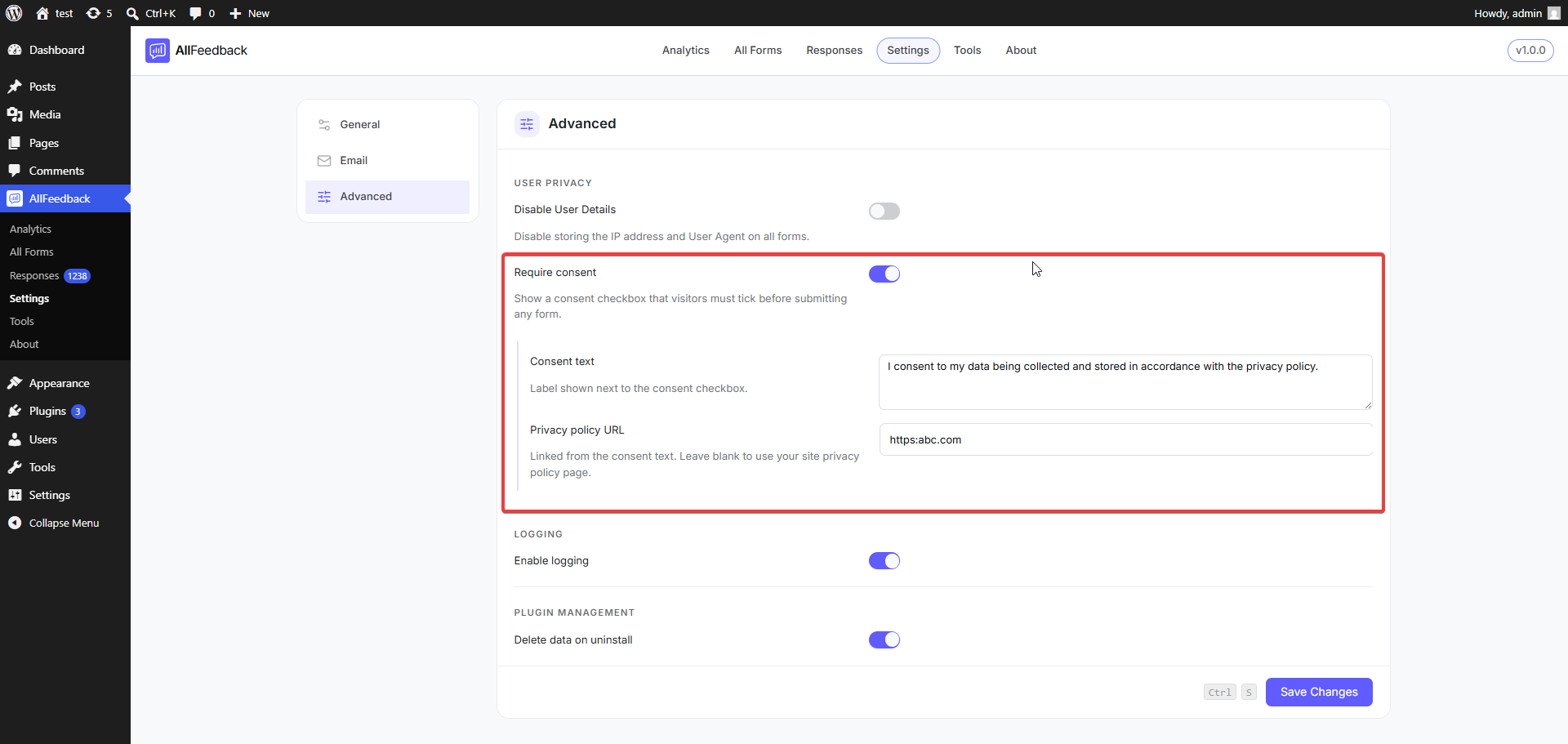
When enabled, AllFeedback shows a consent checkbox that visitors must tick before they can submit any survey. This is a global setting — it can't be turned on or off per survey.
To enable it:
Go to Settings → Advanced → Privacy
Toggle on Require Consent
Click Save Changes
When Require Consent is on, two more fields appear:
Consent text — the label shown next to the consent checkbox (default: "I agree to the storage and handling of my data.")
Privacy policy URL — linked from the consent text; leave it blank to use your site's privacy policy page
Consent is enforced on the server: if a visitor submits without ticking the box, the response is rejected and they see the error "You must provide consent to submit a response to this survey."
Logging Settings
Enable Logging
When enabled, AllFeedback records its internal activity to help you troubleshoot problems.
To enable it:
Go to Settings → Advanced → Logging
Toggle on Enable Logging
Click Save Changes
Logs are written to {uploads}/allfeedback/logs/, with one file per day (allfeedback-YYYY-MM-DD.log). The directory is protected from direct web access, and you can view logs from AllFeedback → Tools → Logs.
By default, AllFeedback records error- and warning-level messages. Fatal errors are always recorded, even when logging is switched off. Log files older than 30 days are pruned automatically as new entries are written.
Plugin Management
Delete Data on Uninstall
When enabled, all plugin data is permanently removed if you delete the plugin — including surveys, responses, sessions, settings, and logs.
To enable it:
Go to Settings → Advanced → Plugin Management
Toggle on Delete data on uninstall
Click Save Changes
This is irreversible. Enable it only if you're certain you no longer need any AllFeedback data — once you delete the plugin with this on, everything is erased and cannot be recovered.
Expected Outcome
After configuring Advanced settings:
Privacy settings take effect immediately for new survey submissions
Logging begins recording activity as soon as you enable it
The "Delete data on uninstall" setting is stored and applied only when you actually delete the plugin
Common Issues
Consent checkbox not appearing on surveys → Make sure Require Consent is enabled in Settings → Advanced → Privacy. The consent checkbox appears automatically on all surveys when this setting is on.
Log files not being created → Verify that Enable Logging is on in Settings → Advanced → Logging, and that your WordPress uploads directory is writable by the web server.
Old log files not being deleted → Cleanup happens automatically when new log entries are written. If logging is disabled, old files won't be removed until you re-enable logging.